ClickUp Review 2026: Honest Pros, Cons & Pricing (After 6+ Months Testing)
The "Everything App" Promise
I've spent over six months testing ClickUp with my team, and I need to address the elephant in the room right away. ClickUp calls itself "one app to replace them all." That's a massive promise in a world where most teams juggle between Slack, Trello, Google Docs, Zoom, and countless other tools daily.
After logging thousands of hours, managing over 200 projects, and pushing nearly every feature to its limits, I can tell you exactly where this promise holds up and where it crumbles. This review comes from real-world testing with a 12-person team across marketing, development, and operations departments.
My testing framework evaluates project management tools across ten categories: ease of use, feature depth, performance, support quality, value for money, scalability, integration capabilities, mobile experience, security, and team adoption rate. ClickUp scored remarkably different across these categories, which I'll explain throughout this review.
Who am I to judge? I've tested over 30 project management platforms in the past five years. Our team has used everything from simple tools like Todoist to enterprise solutions like Microsoft Project. We know what works, what doesn't, and most importantly, what actually gets adopted by real teams doing real work.
What is ClickUp? Understanding the Platform
ClickUp is a cloud-based project management and productivity platform that launched in 2017. The company, founded by Zeb Evans and Alex Yurkowski, set out to solve a simple problem: workplace tools were too fragmented. Their solution was to build one platform that could handle tasks, docs, goals, time tracking, chat, and more.
Today, ClickUp serves over 10 million users across 800,000 teams worldwide. The platform has raised over $530 million in funding and achieved a $4 billion valuation. These aren't just vanity metrics. They indicate a tool with serious staying power and resources for continued development.
The platform positions itself uniquely in the market. Where Asana focuses on simplicity and task management, where Monday.com emphasizes visual project tracking, and where Notion builds around documents and wikis, ClickUp tries to do everything. It's simultaneously a project management tool, a document collaboration platform, a time tracker, a goal-setting system, and a communication hub.
This all-in-one approach creates both ClickUp's greatest strength and its most significant weakness. The flexibility to configure ClickUp for almost any workflow is unmatched. But this same flexibility creates complexity that can overwhelm teams just trying to track their to-do lists.
The core structure uses a hierarchy system that takes time to understand. Your entire organization exists in a Workspace. Within that Workspace, you create Spaces for different teams or departments. Spaces contain Folders for organizing projects. Folders hold Lists where your actual tasks live. Tasks can have subtasks, checklists, and nested subtasks. If that sounds complicated, that's because it is.
[VISUAL: Hierarchy diagram showing Workspace > Space > Folder > List > Task structure with examples]
ClickUp Pricing & Plans: Complete Breakdown
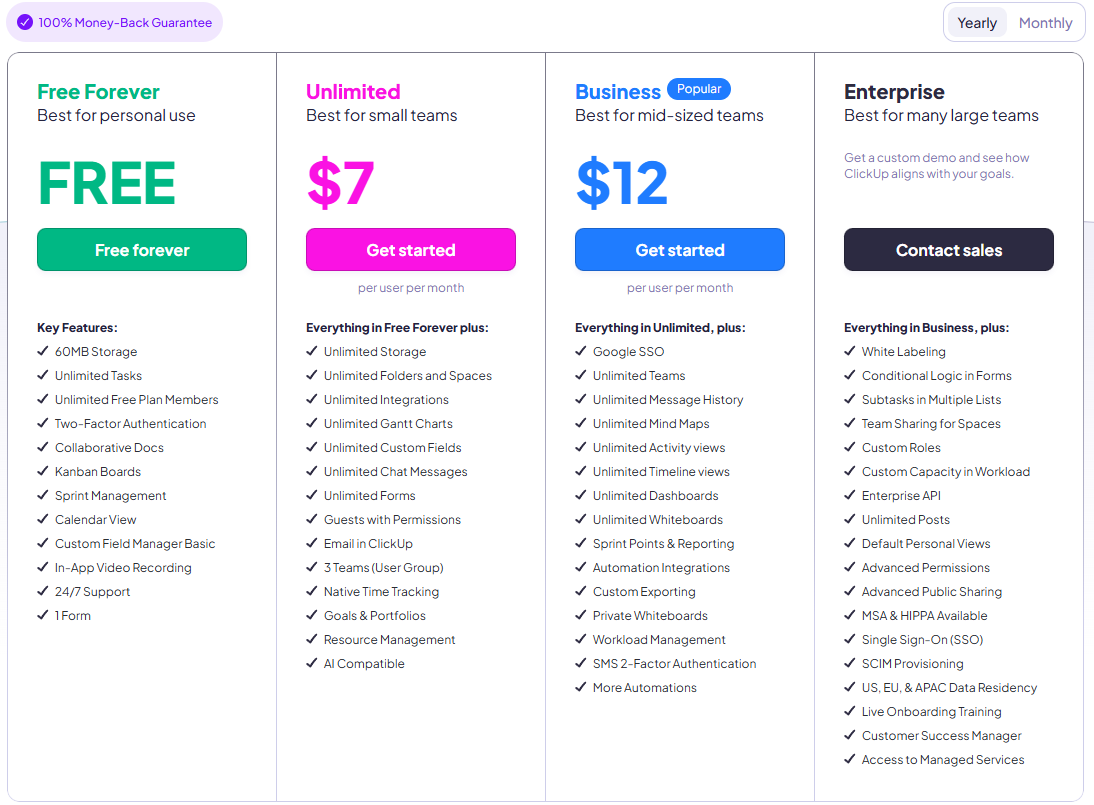
Understanding ClickUp's pricing requires looking beyond the sticker price. Each tier unlocks different features that might be essential or irrelevant depending on your needs.
Free Forever Plan - The Gateway Drug
[SCREENSHOT: Free plan dashboard showing the 100MB storage limit indicator and restricted features]
ClickUp's free plan shocked me when I first discovered what it included. Most project management tools give you a limited trial or a crippled free version. ClickUp hands you a genuinely useful tool at no cost.
What's Included
The free plan gives you unlimited users, which is unheard of in this space. You also get unlimited tasks, 100MB of storage, access to all view types, real-time collaboration, and mobile apps. You can create up to 5 Spaces, use 100 automation actions monthly, and access basic integrations.
Key Limitations
Storage caps at 60MB, which fills quickly with attachments. Automations are limited to 100 uses per month. You can't use goals, portfolios, or custom fields. Dashboard creation is restricted. Guest permissions are fully open, meaning external users have complete access. You miss out on time tracking features beyond basic manual entry.
Best For
Personal productivity, freelancers, or teams under 5 people testing the waters. Small startups can run entirely on the free plan if they don't need advanced features.
During testing, we ran a 4-person team on the free plan for two weeks. It worked, but we constantly hit automation limits and struggled without custom fields. The 60MB storage vanished after uploading a few design files.
Unlimited Plan ($7-10/user/month) - The Sweet Spot
[SCREENSHOT: Unlimited plan dashboard showing unlocked features like unlimited storage and integrations]
At $7 per user monthly (billed annually) or $10 month-to-month, the Unlimited plan removes most restrictions that matter for growing teams.
Key Upgrades from Free: Unlimited storage eliminates the constant worry about file sizes. The automation limit jumps to 1,000 actions monthly. You gain unlimited integrations, dashboards, and custom fields. Guest permissions now have four control levels: view only, comment only, edit, or full access. You unlock unlimited Gantt charts, goal tracking, portfolios, and resource management views.
What You Still Don't Get: Advanced time tracking features like billable rates remain locked. Workload management is basic. Custom role creation isn't available. Advanced permissions and sharing options require higher tiers.
Best For: Small businesses with 5-20 employees, growing startups, and teams needing real project management without enterprise features. This plan hits the sweet spot for most small to medium businesses.
Real-World Example: Our 12-person team ran on Unlimited for three months. We only hit limits when trying to track project profitability and needed more granular permissions. For pure project management, this plan handled everything we threw at it.
Business Plan ($12-19/user/month) - Power User Territory
[SCREENSHOT: Business plan advanced features - time tracking with billable rates interface]
The Business plan costs $12 per user monthly with annual billing or $19 month-to-month. This tier adds features that larger teams and agencies typically need.
Major Additions: Advanced time tracking includes billable rates, time estimates, and reporting. Workload management shows team capacity and helps balance assignments. The automation limit explodes to 10,000 actions monthly. You get timeline views, mind maps, and advanced dashboard features. Custom field calculations and formulas become available. Team sharing for Spaces enables better cross-department collaboration.
Security & Admin Features: Two-factor authentication enforcement, Google SSO, custom roles, and more granular permissions give admins better control. The activity view extends to 90 days instead of 7.
Best For: Mid-sized teams (20-100 people), agencies tracking billable hours, teams needing resource management, and organizations requiring enhanced security.
Value Assessment: The jump from $7 to $12 per user seems steep, but the added features justify it for teams that need them. During our testing, the advanced time tracking alone saved our accounting team hours weekly.
Enterprise Plan (Custom Pricing) - The Full Arsenal
Enterprise pricing requires contacting sales directly. From conversations with enterprise users, expect to pay 50-100% more than Business tier pricing, depending on negotiation and contract length.
Enterprise Exclusives: White labeling lets you brand ClickUp as your own tool. HIPAA compliance enables healthcare industry use. Advanced security includes SSO through any provider, SCIM provisioning, and custom security reviews. You get a dedicated Customer Success Manager and personalized onboarding. The API has higher rate limits and additional endpoints.
Contract Terms: Minimum seats usually start at 50-100 users. Annual contracts are standard with some flexibility for multi-year deals. Custom terms can include SLAs, custom integrations, and priority support.
Best For: Large organizations (100+ employees), healthcare companies needing HIPAA compliance, enterprises requiring advanced security and compliance, and companies wanting dedicated support.
Hidden Costs: Implementation often requires professional services, adding $10,000-50,000 to the first-year cost. Training programs run additional fees. Custom integrations are quoted separately.
ClickUp Brain AI Add-on ($7/user/month) - The Future or a Gimmick?
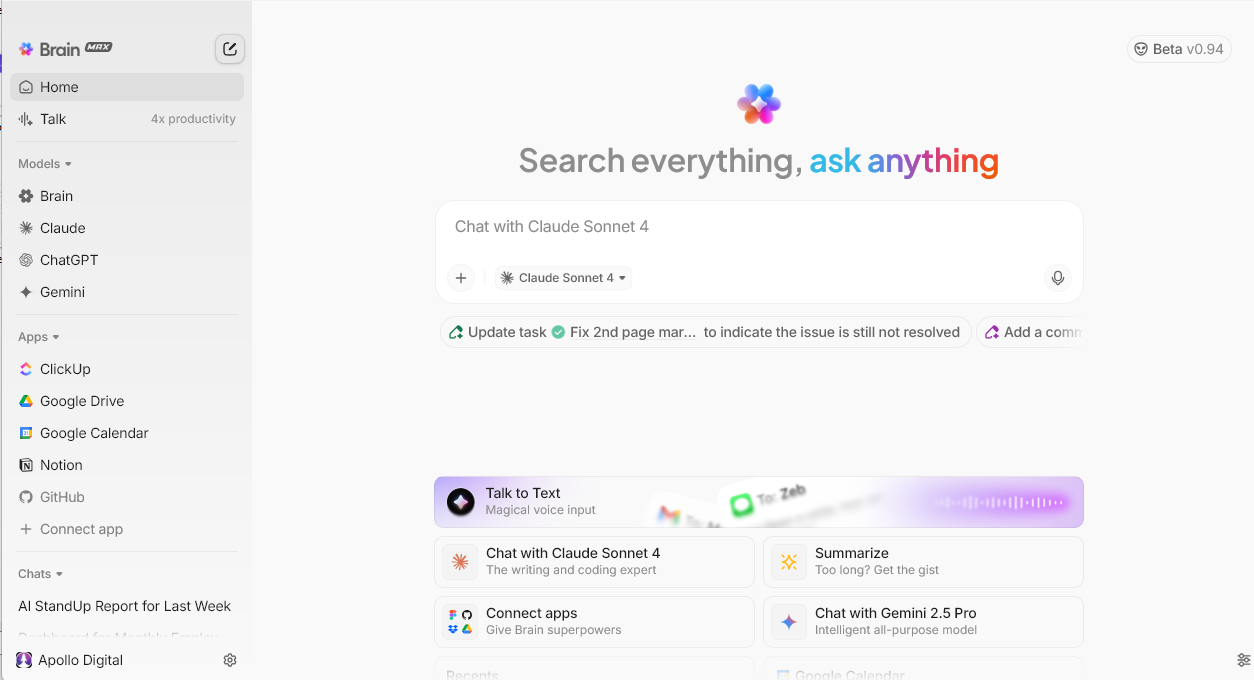
ClickUp Brain costs an extra $7 per user monthly on any paid plan. The AI features promise to revolutionize how you work, but do they deliver?
What Brain Actually Does
AI can summarize long documents and comment threads. It generates task descriptions and breaks down projects into subtasks. The AI suggests due dates based on historical data. It can write project updates and status reports. Knowledge management features help find information across your workspace.
Our Experience
We tested Brain for two months. The summarization features saved time on long documents. Task generation felt generic and needed heavy editing. The AI struggled with our specific terminology and workflows. For $7 per user, the value wasn't there for our team.
Worth It For
Content-heavy teams creating lots of documentation, larger teams where finding information is challenging, and organizations willing to train the AI on their specific needs.
Key Features Deep Dive
Task Management & Views - Flexibility Overload
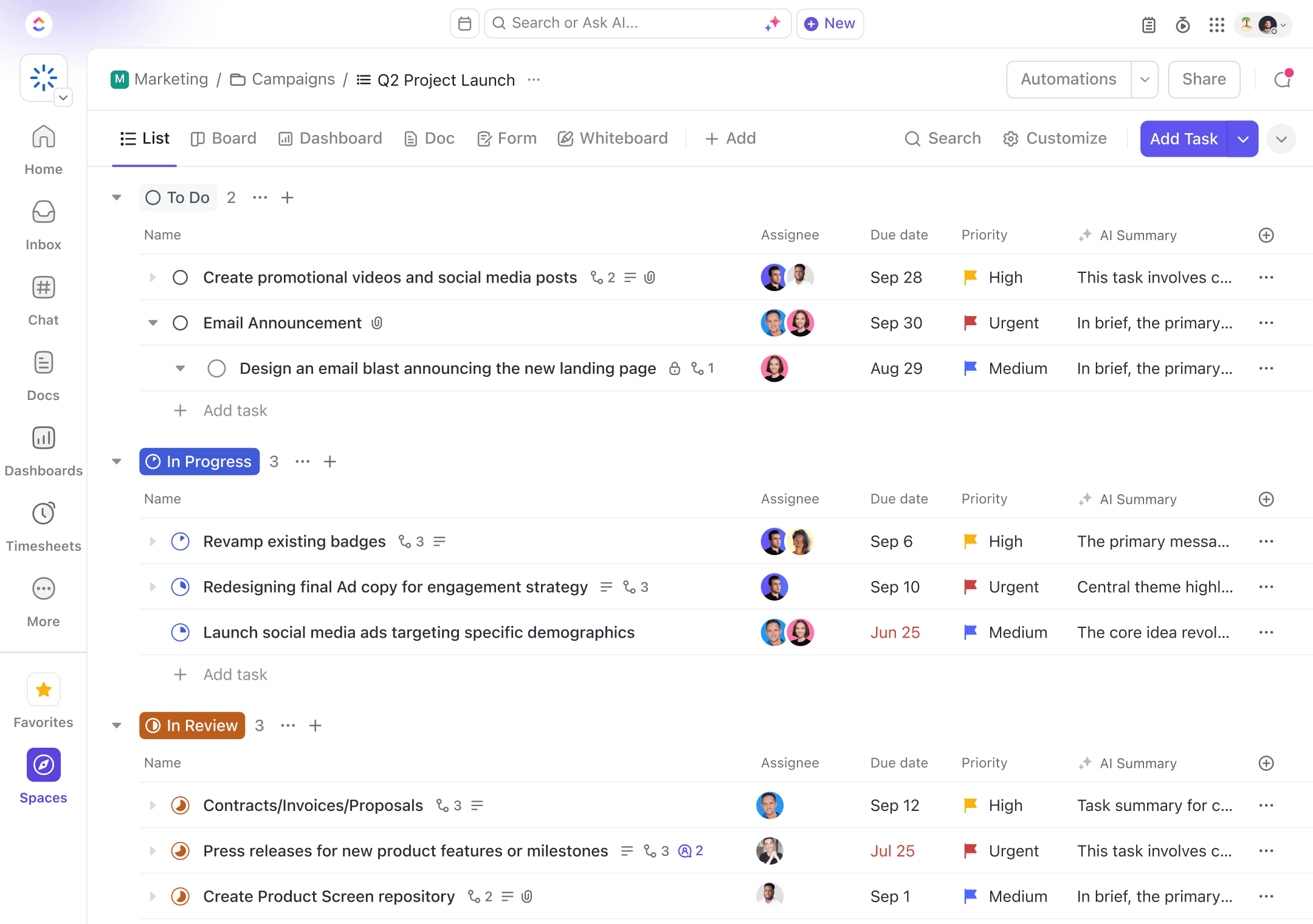
ClickUp's task management starts with a simple premise: everyone works differently. The platform provides 15+ ways to view your tasks, each suited for different work styles and project types.
List View displays tasks in a traditional spreadsheet format. You can sort, filter, and group tasks by any field. Custom columns show exactly the information you need. During testing, our accounting team lived in List view because it reminded them of Excel.
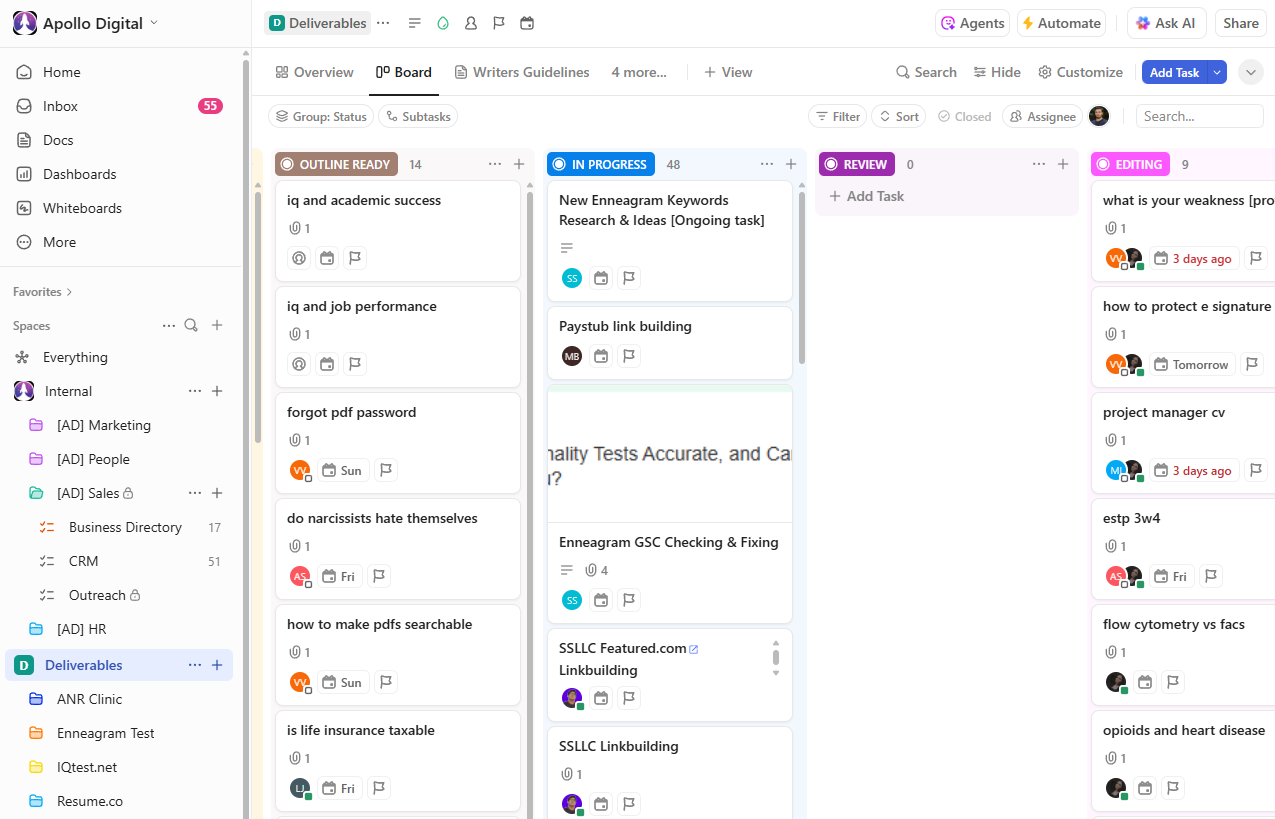
Board View mimics Kanban boards like Trello. Tasks appear as cards that you drag between status columns. Our marketing team preferred this for campaign management. The cards can display custom fields, making them information-rich without opening each task.
Calendar View shows tasks on a monthly, weekly, or daily calendar. You can drag tasks to different dates, create tasks by clicking dates, and sync with external calendars. Color coding by project or priority helps visualize workload distribution.
Gantt View reveals project timelines and dependencies. You can drag to adjust dates, link dependent tasks, and identify critical paths. The Gantt chart updates in real-time as tasks progress. Project managers loved this view, though it requires the Business plan for full features.
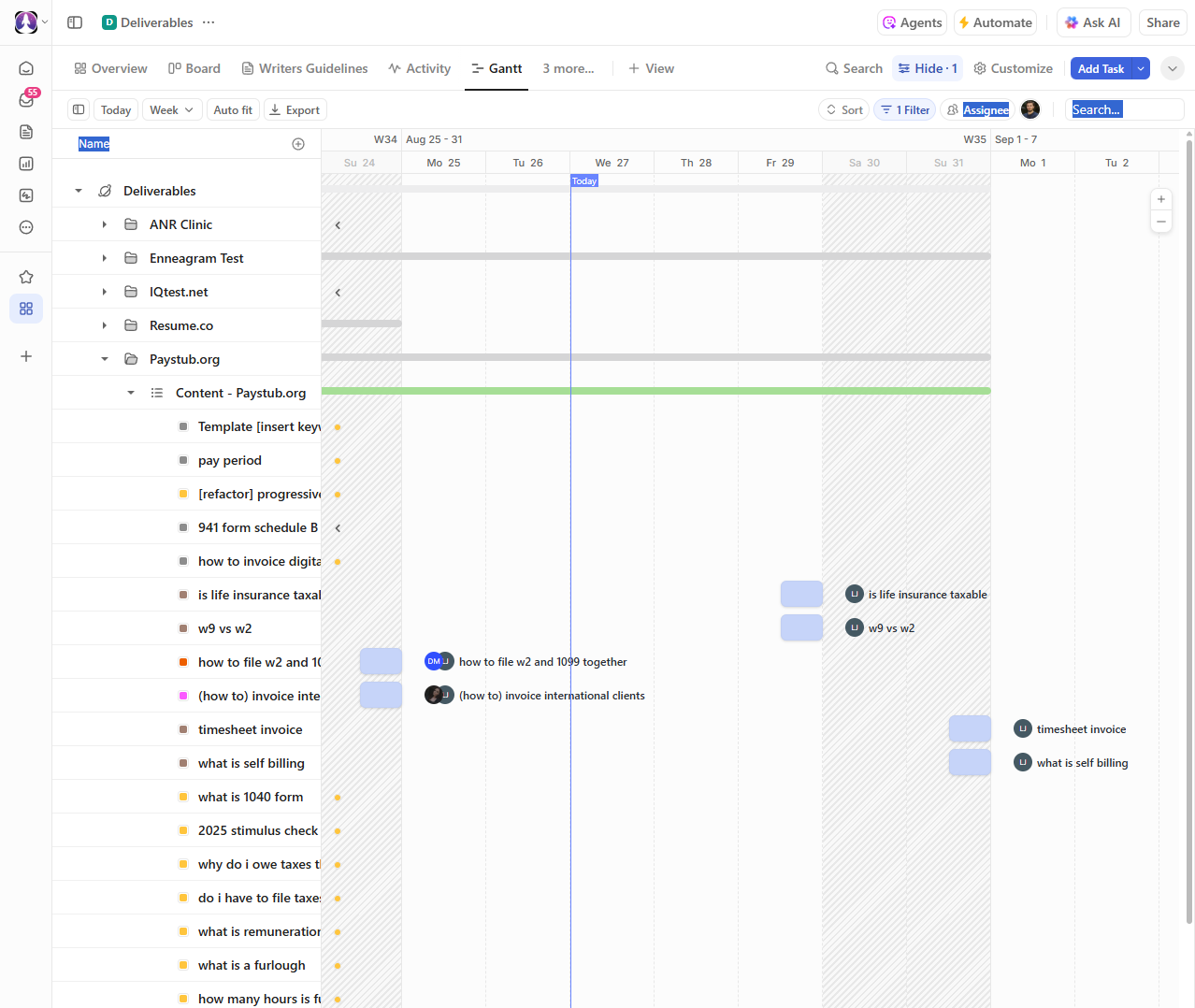
Timeline View offers a simpler alternative to Gantt charts. It shows tasks on a horizontal timeline without the complexity of dependencies. Great for content calendars and marketing campaigns.
Workload View visualizes team capacity. See who's overloaded and who has availability. Assign work based on actual capacity rather than guessing. This feature alone justified our Business plan upgrade.
Mind Map View lets you brainstorm and organize ideas visually. Create tasks directly from mind map nodes. Perfect for project planning sessions, though the interface feels clunky compared to dedicated mind mapping tools.
The remaining views (Table, Activity, Map, Form, etc.) serve specific purposes but saw less use in our testing. The paradox of choice definitely applies here. Teams spent weeks debating which views to standardize on.
Creating tasks in ClickUp requires more steps than simpler tools. You must choose a List, set a status, assign someone, pick a priority, and potentially fill custom fields. Templates speed this up, but the initial friction frustrated team members used to quick-entry tools.
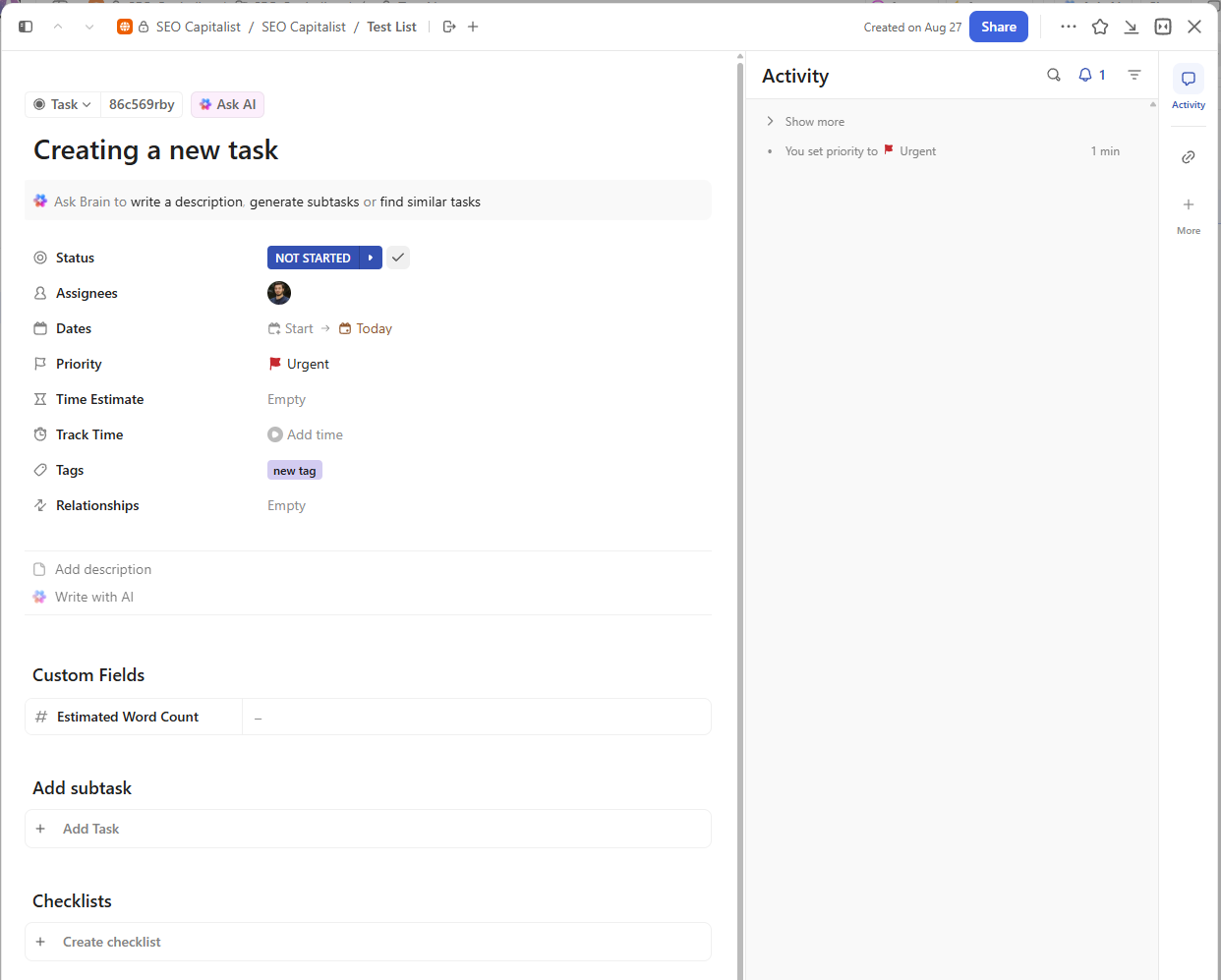
Task features themselves impress with their depth. Subtasks can have their own assignees, due dates, and custom fields. Checklists handle simple sub-items. Dependencies ensure tasks happen in order. Recurring tasks automate repeated work. Time estimates help with planning. Comments support rich text, images, and file attachments.
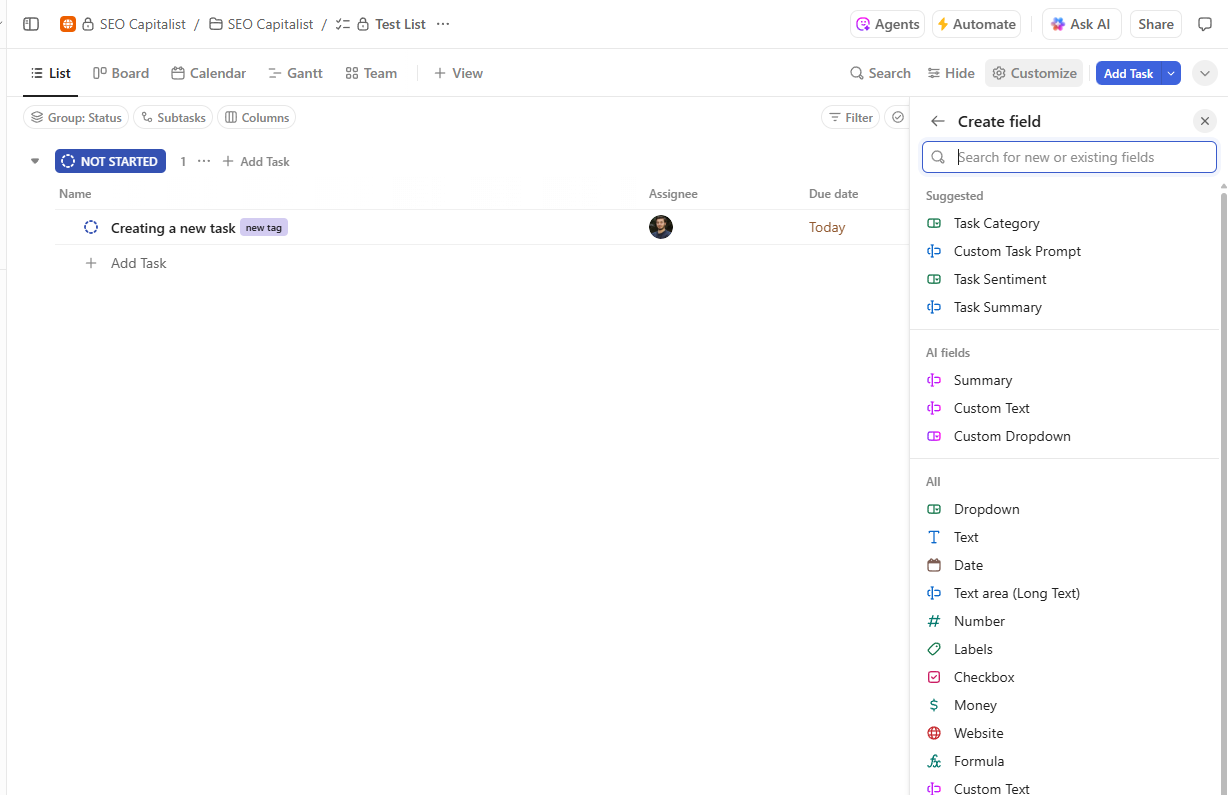
Custom fields transform ClickUp into whatever you need. Create dropdowns for project phases, number fields for budgets, formulas for calculations, or relationship fields linking related tasks. We built a complete CRM using custom fields, though it required significant setup time.
Time Tracking & Resource Management - Almost There
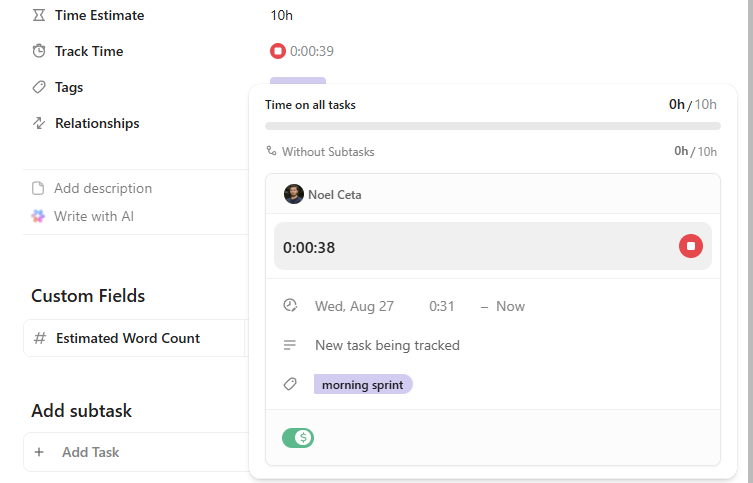
ClickUp includes native time tracking at no extra cost, which immediately sets it apart from competitors who charge separately or require integrations.
Starting and Stopping Time: The global timer lets you start tracking from anywhere in ClickUp. Click the timer icon, select a task, and start tracking. The timer persists as you navigate, showing elapsed time in the corner. Mobile apps support time tracking, though with some sync delays.
The problems emerge in the details. Starting a timer takes multiple clicks. You must have a task selected, meaning you can't start tracking and assign it later. The timer widget is small and easy to forget about. We had multiple instances of team members tracking time overnight because they forgot to stop the timer.
Manual Time Entry: Adding time manually works better than the timer for many scenarios. Click any task, add a time entry, select the date and duration, and optionally add notes. Bulk time entry would help, but doesn't exist. You must add entries one task at a time.
Timesheets and Reporting: The timesheet view shows all time entries in a grid format. Filter by date, person, project, or client. Export to CSV for payroll processing. Compare tracked time to estimates. See which projects are profitable based on billable rates (Business plan required).
Reports reveal valuable insights but require configuration. Create dashboards showing time by project, client, or team member. Track billable vs non-billable hours. Monitor project profitability. The reporting impressed us once configured, but initial setup took hours.
Resource Management: Workload view helps balance team capacity. Set daily or weekly hour capacities per person. See who's overloaded in red, who has capacity in green. Drag tasks between team members to balance workload. Factor in time estimates to predict future capacity issues.
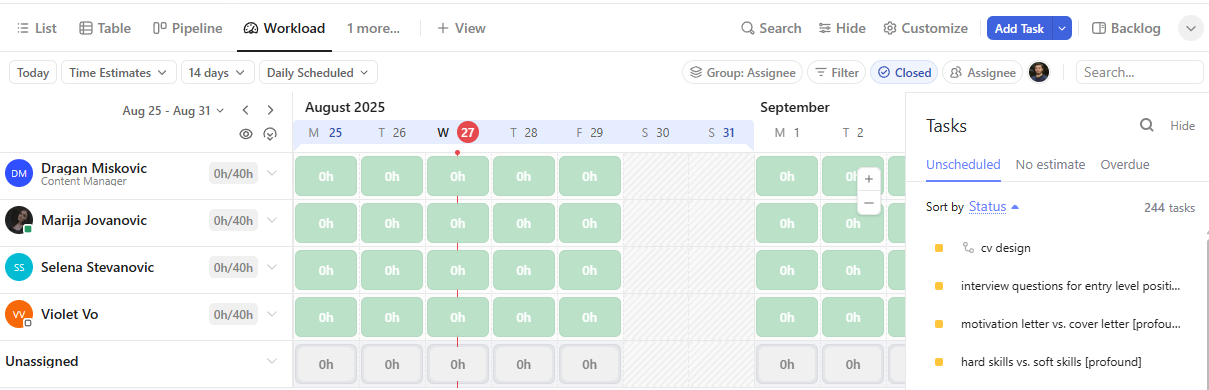
The Business plan adds advanced resource management. Track billable rates per person or project. Set different rates for different clients. Generate invoices from tracked time (though the invoice features are basic). Calculate project profitability automatically.
What's Missing: Integration with payroll systems doesn't exist. You'll export CSVs and import elsewhere. Automatic time tracking based on computer activity isn't available. Rounding rules for billing are limited. Client-facing timesheets require workarounds.
Collaboration Features - Replacing Your Tool Stack
ClickUp attempts to eliminate the need for separate collaboration tools. The success varies by feature.
ClickUp Docs - Google Docs Alternative:
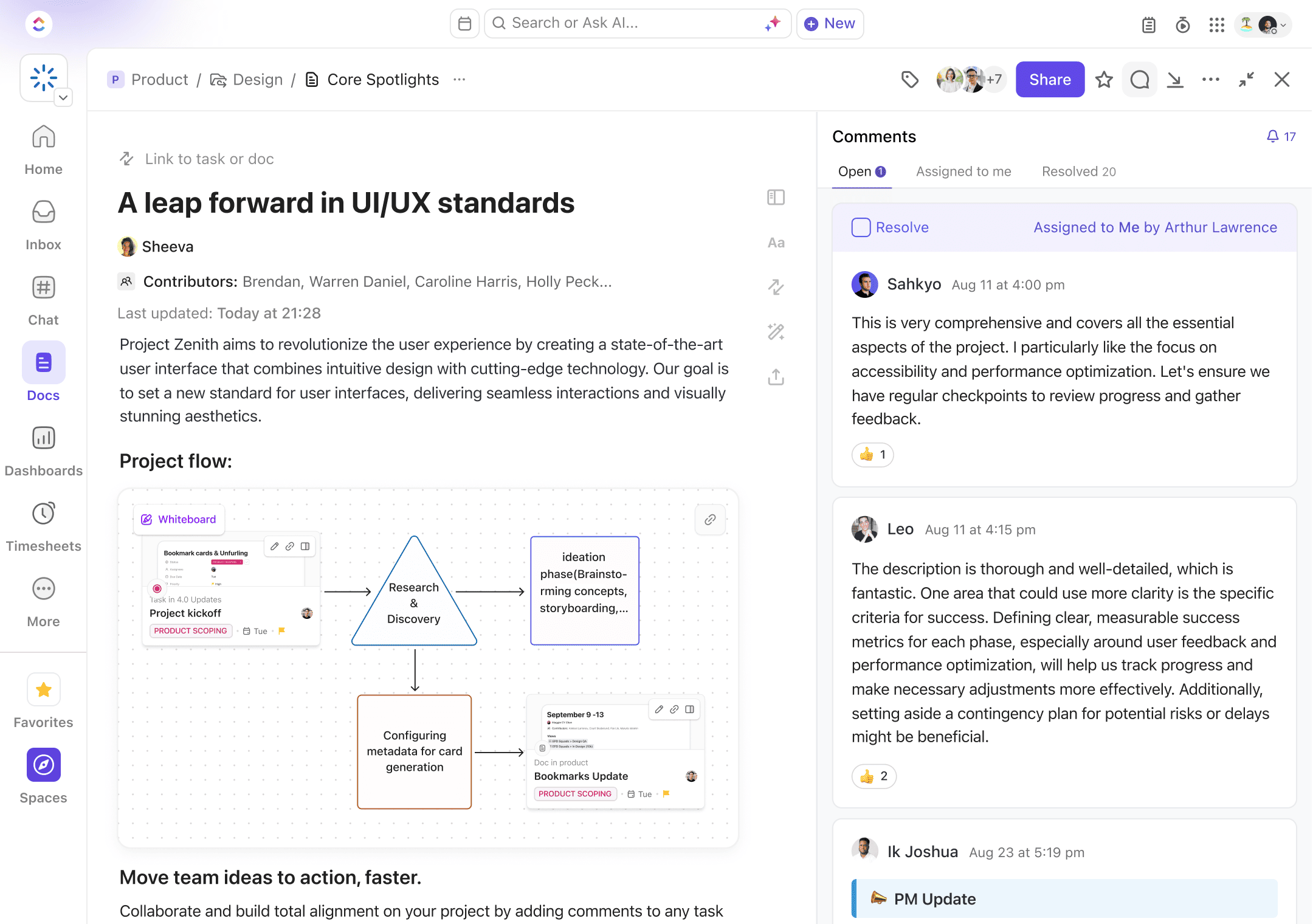
Docs live inside ClickUp with real-time collaborative editing. Multiple users can work simultaneously with color-coded cursors. Rich formatting includes headers, tables, code blocks, and embedded media. You can embed live ClickUp tasks that update as task details change.
The editor handles most document needs competently. We successfully moved our wiki from Confluence. Product requirements documents, meeting notes, and project briefs all worked well. The lack of advanced features like suggesting mode or comprehensive version history limited some use cases.
Connecting Docs to tasks creates powerful workflows. Link Docs to tasks for context. Create tasks from Doc content. Reference Docs in task descriptions. Search finds content across all Docs instantly.
Whiteboards - Miro/Mural Alternative:
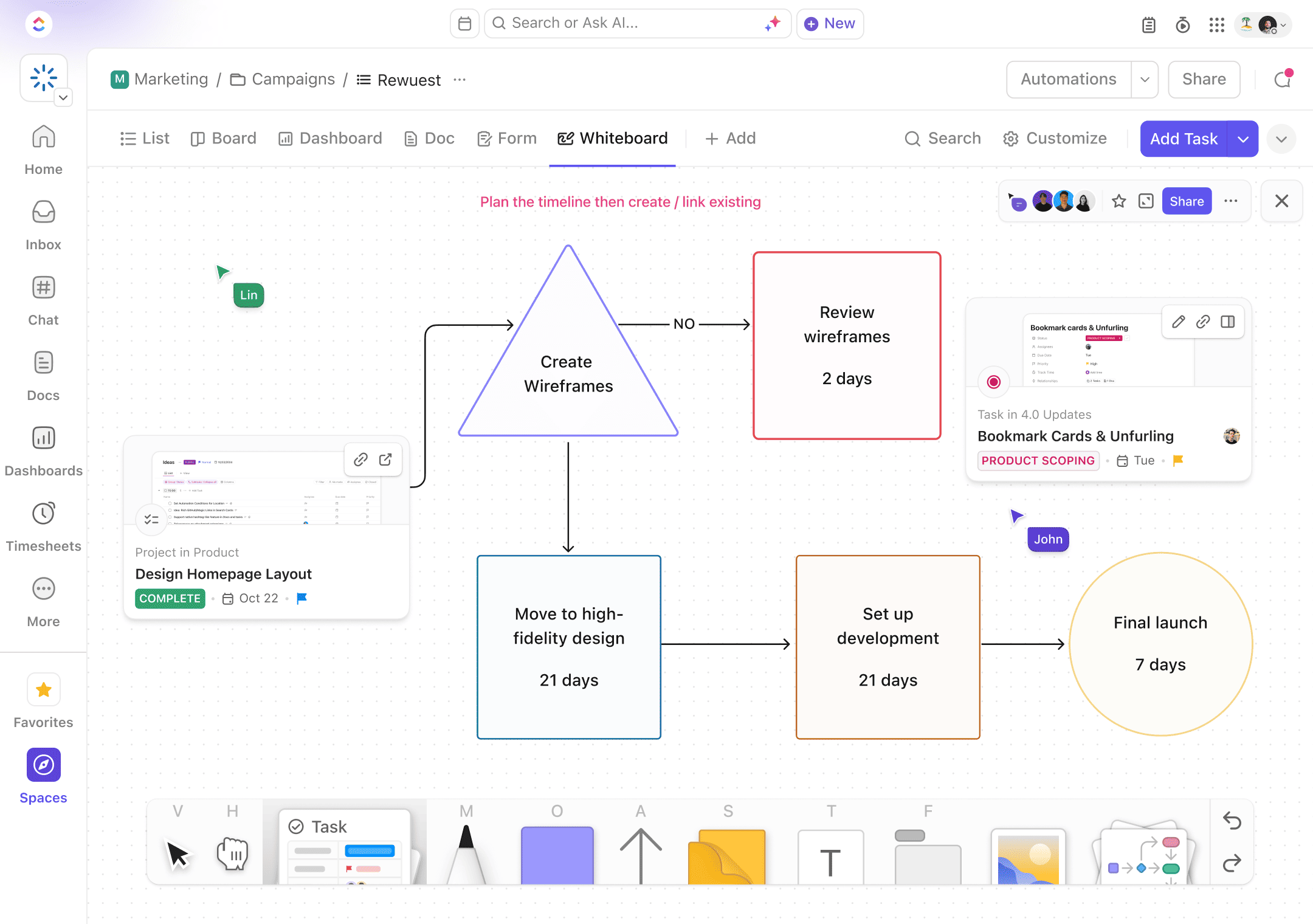
The Whiteboard feature enables visual collaboration. Draw shapes, add sticky notes, embed images, and connect elements with arrows. Real-time collaboration shows other users' cursors. Convert whiteboard elements into tasks. Embed live ClickUp tasks that update automatically.
For basic brainstorming and planning, Whiteboards work well. We used them for sprint planning and project kickoffs. The features don't match dedicated tools like Miro. No advanced frameworks, limited shape libraries, and basic formatting options. But having whiteboards integrated with tasks proves valuable.
Chat View - Slack Alternative:
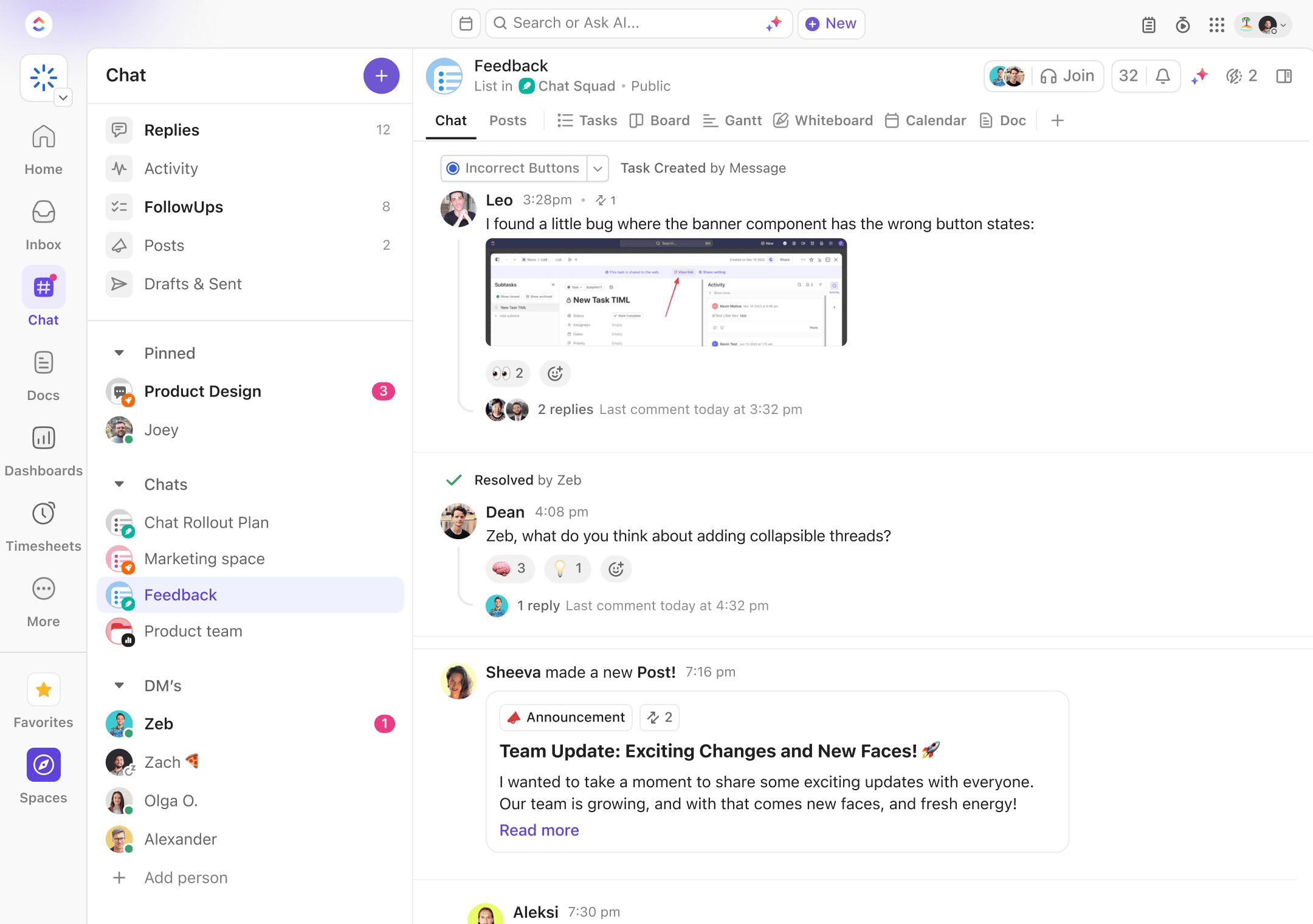
Each Space can have Chat views for real-time communication. Create multiple channels per Space. Share files and images. Mention teammates with @tags. Create tasks from messages. Thread conversations for organization.
Chat never felt natural in our testing. The interface lacks Slack's polish. Notifications are inconsistent. Search is basic. Integrations don't exist. We tried replacing Slack for two weeks but switched back. Chat works for quick task-related discussions but can't replace dedicated communication tools.
Comments and Collaboration: Task comments shine as ClickUp's best collaboration feature. Rich text formatting, file attachments, and @mentions keep discussions contextual. Assign comments to ensure follow-up. Mark comments as resolved to track decisions. Email notifications keep everyone informed.
The activity stream shows all changes across your workspace. Filter by person, project, or action type. See who changed what and when. The stream helped us track progress without status meetings.
Proofing and Approval: The proofing feature lets clients and teammates annotate images and PDFs directly. Click anywhere on an asset to add comments. Assign comments for fixes. Track approval status. Version control shows asset history. Great for design teams and agencies working with visual content.
Automation - Time Saver or Time Sink?
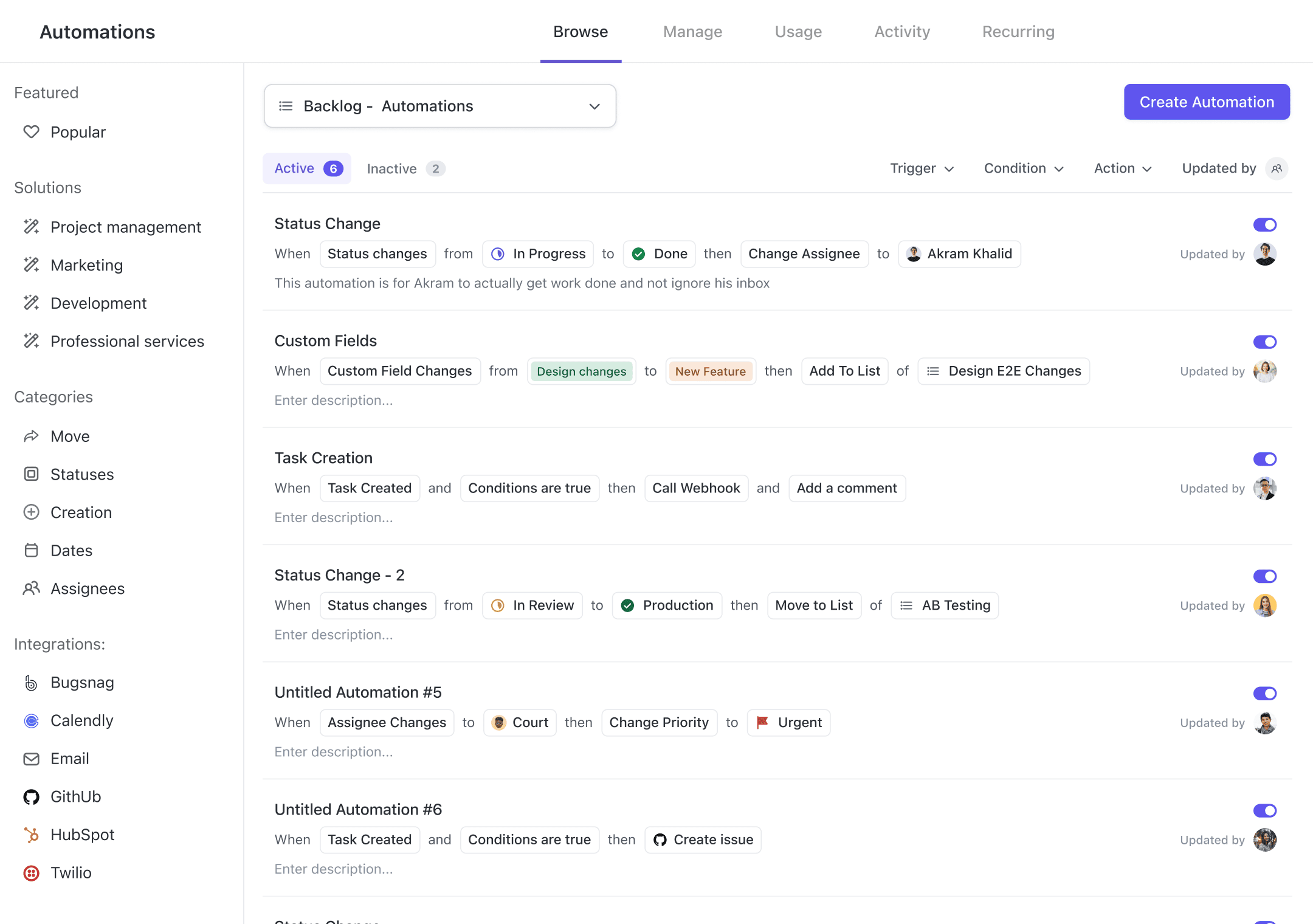
ClickUp's automation promises to eliminate repetitive work. The reality depends on your patience for configuration.
How Automation Works: Automations follow an if-this-then-that logic. When a trigger occurs (status changes, due date arrives, custom field updates), actions execute (move task, assign person, add comment). Add conditions to make automations more specific.
Pre-built Automation Templates: ClickUp provides dozens of templates for common scenarios. "When status changes to Complete, move task to Done list." "When priority is Urgent, assign to team lead." "When due date arrives, change status to Overdue." Templates provide a starting point but usually need customization.
Creating Custom Automations: The automation builder uses a visual interface. Select your trigger from dozens of options. Add conditions like "only if assigned to marketing team." Choose actions from moving tasks to sending webhooks. Test automations before enabling them.
Building complex automations frustrated us initially. The interface isn't intuitive. Debugging why automations didn't fire required detective work. Documentation is limited. But once configured, automations genuinely saved time.
Real-World Automation Examples: We automated our entire client onboarding process. When a deal closes in our CRM (via Zapier), ClickUp creates a project from a template, assigns team members, sets due dates based on start date, sends a welcome email to the client, and creates recurring check-in tasks.
Content publishing automation moved blog posts through our editorial workflow. Draft completion triggered editor assignment. Editorial approval moved posts to design. Design completion triggered WordPress upload task. Publishing triggered social media promotion tasks.
Automation Limitations: The free plan's 100 actions vanish quickly with even basic automations. The Unlimited plan's 1,000 actions sound like plenty but disappear if you automate aggressively. We hit the limit after automating just five workflows.
Some triggers and actions are missing. Can't trigger based on comment content. Can't automatically create subtasks. Can't send emails directly (webhook to Zapier required). Cross-space automation doesn't exist.
Reporting & Analytics - Knowledge is Power
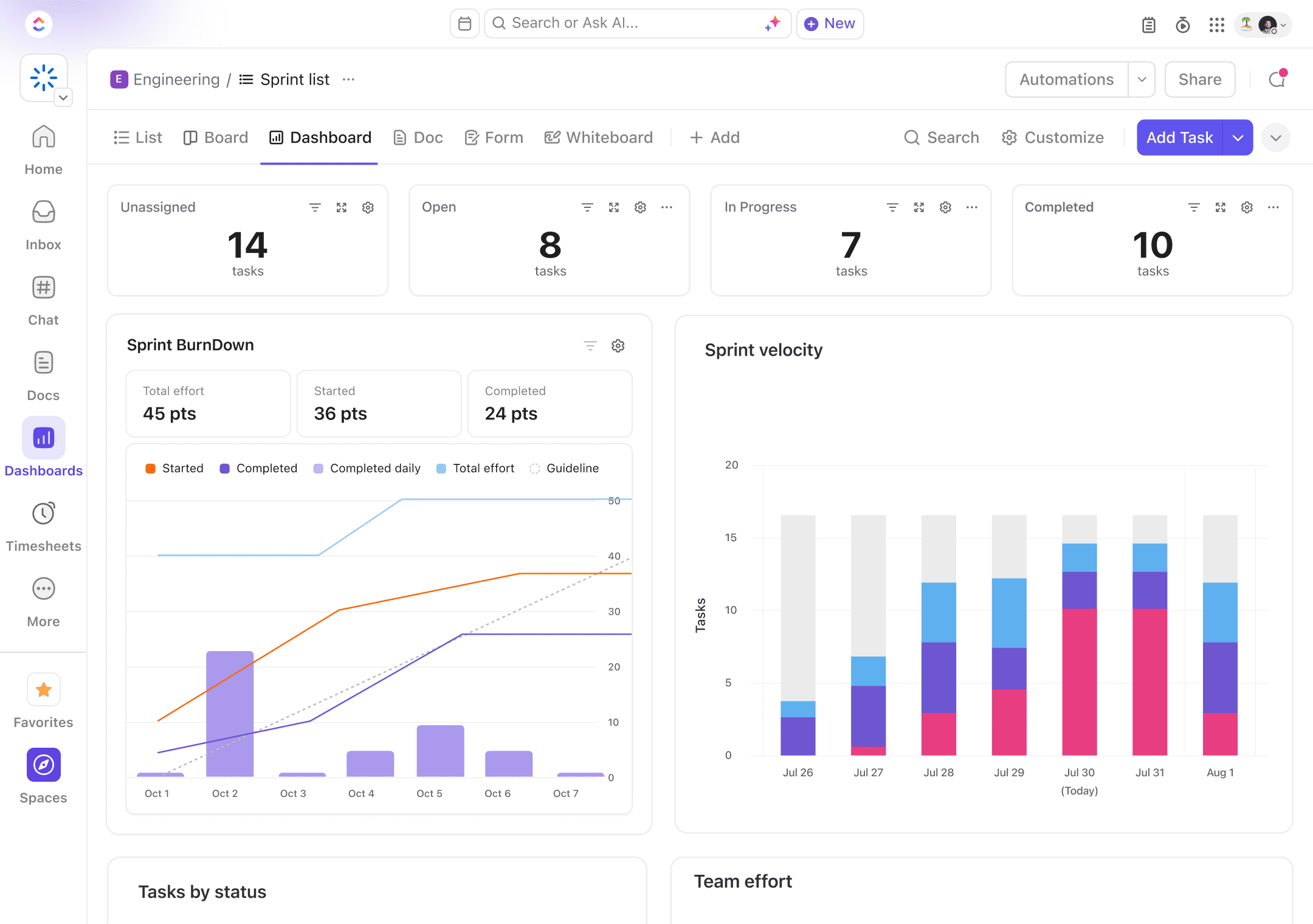
ClickUp's reporting capabilities surprised us with their depth, though accessing them requires patience and the right plan.
Dashboards - Your Mission Control: Dashboards combine multiple widgets to create custom reporting views. Drag and drop widgets into position. Resize and arrange to taste. Create multiple dashboards for different audiences. Share dashboards with view-only links.
Widget types cover most reporting needs. Task lists show filtered tasks. Charts visualize data in bars, lines, or pies. Calculation widgets sum custom fields. Workload widgets show team capacity. Time tracking widgets reveal where hours go. External embeds bring in outside data.
Building effective dashboards takes time. Understanding which widget to use requires experimentation. Filtering data properly demands learning ClickUp's filter syntax. But once built, dashboards provide instant insight into project health.
Goal Tracking: Goals in ClickUp connect high-level objectives to actual work. Set numerical targets, monetary goals, or true/false objectives. Link tasks to goals to track progress automatically. Create goal folders for organization. Visualize progress with progress bars and charts.
We set quarterly revenue goals linked to project completion. As projects finished, revenue automatically updated. Department goals tracked task completion rates. Personal goals monitored professional development tasks. The visual progress motivated teams more than expected.
Custom Reporting: The Business plan unlocks advanced reporting features. Create custom calculations using formulas. Build pivot tables from task data. Export reports in multiple formats. Schedule automated report delivery.
Custom fields become powerful with reporting. Track project budgets in number fields. Calculate burn rates with formulas. Compare estimated vs actual time. Monitor customer satisfaction scores. The flexibility matches dedicated BI tools for project data.
What's Missing: Historical data is limited. ClickUp doesn't store snapshots, so you can't see how metrics changed over time. Advanced statistical analysis isn't possible. Predictive analytics don't exist. For complex analysis, you'll export to specialized tools.
What we like
- Unmatched customization flexibility
- Exceptional value proposition
- Continuous innovation and updates
- Comprehensive integration ecosystem
- Powerful free plan
- All-in-one consolidation
What could be better
- Overwhelmin complexity and learning curve
- Persistent performance issues
- Disappointing customer support
- Mobile app limitations
- Feature overload for simple needs
- Inconsistent user experience
ClickUp Pros: The Bright Side
After six months of daily use, certain ClickUp strengths became undeniable. These advantages kept us using ClickUp despite its frustrations.
Unmatched Customization Flexibility
No other tool we've tested matches ClickUp's customization depth. Every aspect molds to your workflow. Status names, colors, and workflows are completely customizable. Create unlimited custom fields of various types. Build views that show exactly what each role needs to see. Design automations that match your exact processes.
This flexibility enabled us to replicate complex workflows from multiple previous tools. Our content team recreated their editorial calendar from CoSchedule. Development replicated their sprint process from Jira. Sales built a pipeline matching their previous CRM. One tool genuinely replaced five others.
Exceptional Value Proposition
The free plan embarrasses competitors. Unlimited users and tasks for free? That's unheard of. Small teams can run entirely on the free plan. The paid plans offer features that would cost hundreds monthly if purchased separately.
We calculated our tool consolidation savings. ClickUp replaced Trello ($10/user), Harvest ($12/user), Confluence ($5/user), and partially replaced Slack ($7/user). That's $34 per user in eliminated costs. ClickUp at $12/user saved us $22 per person monthly, or $3,168 annually for our 12-person team.
Continuous Innovation and Updates
ClickUp releases updates weekly. During our testing, they added new features, improved performance, and fixed bugs we reported. The public roadmap shows what's coming. User feedback directly influences development priorities.
Major updates like ClickUp 3.0 brought significant improvements. Performance increased noticeably. New features like Whiteboards added value without extra cost. The rapid development keeps ClickUp competitive with newer entrants.
Comprehensive Integration Ecosystem
With over 1,000 native integrations plus Zapier support for 7,000 more apps, ClickUp connects to almost anything. Native integrations with Google Workspace, Microsoft 365, Slack, and GitHub cover basics. Specialized integrations with tools like Figma, Loom, and Intercom handle specific needs.
The quality varies by integration. Google Drive integration works flawlessly, syncing files bidirectionally. The Slack integration disappoints, only pushing notifications rather than enabling true two-way sync. But having everything connected in one place reduces context switching significantly.
Powerful Free Plan
This deserves its own highlight. The free plan isn't a trial or a teaser. It's a fully functional project management system. Unlimited users means your entire startup can use it. All view types are included. Mobile apps work without restrictions. Real-time collaboration functions perfectly.
Yes, you miss some features. But for personal use, freelancers, or small teams with simple needs, the free plan delivers more than enough. We know teams of 5-10 people running entirely on the free plan successfully.
All-in-One Consolidation
Having everything in one place changes how teams work. No more switching between apps to find information. No more copy-pasting between tools. No more synchronization issues. No more forgotten passwords for rarely-used tools.
The mental overhead reduction is real. Team members reported feeling more organized and less scattered. Information stayed centralized instead of spreading across tools. New employees onboarded faster with one tool to learn instead of five.
ClickUp Cons: The Pain Points
Honesty requires discussing ClickUp's significant weaknesses. These issues caused real frustration and nearly made us abandon the platform multiple times.
Overwhelming Complexity and Learning Curve
ClickUp is not intuitive. The interface overwhelms with options, buttons, and menus. Finding specific settings requires hunting through multiple levels of configuration. Simple tasks require multiple clicks. Advanced features need documentation to understand.
New team members needed two weeks to feel basically comfortable. A month passed before they were genuinely productive. Compare this to Trello, which most people understand in five minutes. We created a 20-page onboarding guide and still fielded daily questions for weeks.
The hierarchy system (Workspace > Space > Folder > List > Task) confused everyone initially. People put tasks in wrong places. Projects got lost in the structure. We reorganized three times before finding a system that worked.
Persistent Performance Issues
ClickUp loads slowly. Opening the app takes 5-10 seconds. Switching views takes 3-5 seconds. Opening large tasks with many comments takes even longer. These delays accumulate into significant productivity loss.
The mobile app performs worse. It crashes occasionally, especially on Android. Sync delays mean mobile changes don't appear immediately on desktop. Many features are missing or limited on mobile. Team members working primarily on phones struggled constantly.
ClickUp 3.0 supposedly improved performance by 2x. It did get better, but "twice as fast as very slow" still isn't fast. We learned to open ClickUp in the morning and leave it running all day. Refreshing the page became a last resort due to load times.
Disappointing Customer Support
Despite paying for the Business plan, support frustrated us repeatedly. Email responses took 24-48 hours and often provided generic answers. Live chat, when available, felt like talking to someone reading from scripts. Complex issues required multiple interactions without resolution.
The knowledge base contains helpful articles but lacks depth. Videos become outdated quickly as features change. Advanced features have minimal documentation. We found better answers in community forums and YouTube videos than official resources.
When our automation broke after an update, support took three days to acknowledge the issue and another week to fix it. No proactive communication about the problem. No compensation for the disruption. Just "thanks for your patience" messages.
Mobile App Limitations
The mobile experience deserves its own callout. While ClickUp offers mobile apps, they're clearly an afterthought. Many features are missing entirely. Others work differently than desktop. The interface feels cramped on phones.
Creating tasks on mobile takes forever with all the required fields. Viewing Gantt charts is nearly impossible. Dashboards don't load properly. Automations can't be edited. Time tracking barely functions. We told mobile-primary team members to find a different solution.
Feature Overload for Simple Needs
If you just need task management, ClickUp is overkill. The features you'll never use clutter the interface. Settings you don't understand cause confusion. Options you didn't know existed create problems.
We helped a three-person startup implement ClickUp. After two weeks, they switched to Todoist. They didn't need 15 view types, custom fields, or automation. They needed a simple task list. ClickUp couldn't get out of its own way to provide simplicity.
Inconsistent User Experience
Different features feel like different products awkwardly combined. Docs use one editor, task descriptions use another, and comments use a third. Keyboard shortcuts vary between views. Mobile apps work differently than desktop. The inconsistency creates constant friction.
Updates sometimes change interfaces without warning. Features move to different menus. Workflows break when automations change. We had to retrain our team twice when major updates reorganized familiar features.
Setup & Implementation Requirements
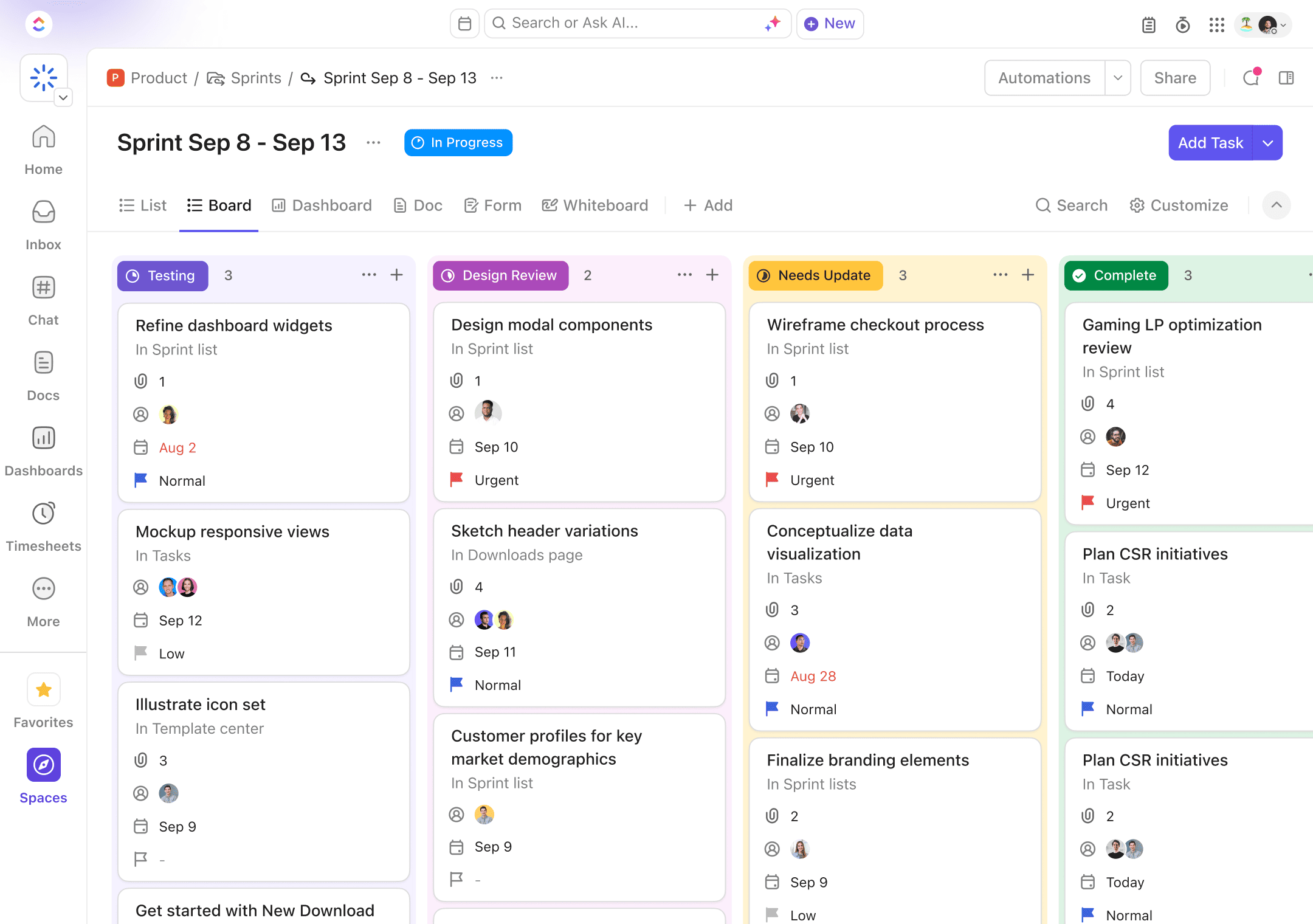
Implementing ClickUp properly requires significant investment. Teams that rush setup invariably fail and abandon the platform.
The Real Timeline
Forget what ClickUp's marketing suggests. Proper implementation takes 4-8 weeks minimum. Here's our actual timeline:
Week 1: Foundation Building We spent three days just understanding the hierarchy system. Creating Spaces and Folders took another day. Importing data from previous tools consumed two days. Initial confusion and reorganization filled the remaining time.
Week 2: Configuration Deep Dive Custom fields required careful planning. Status workflows needed team input. Views had to be configured for each role. Templates for common tasks took hours to perfect. Automation seemed simple but required constant tweaking.
Week 3: Team Training Initial training sessions revealed massive gaps in understanding. Individual coaching helped power users. Documentation creation took longer than expected. Practice projects helped teams learn without pressure. Resistance from some team members required addressing.
Week 4: Reality Adjustment Real work revealed configuration problems. Workflows that seemed logical failed in practice. Missing automations became apparent. Permission issues surfaced. Performance problems frustrated everyone.
Weeks 5-8: Continuous Refinement Daily adjustments based on team feedback. Weekly reviews to identify pain points. Gradual addition of advanced features. Ongoing training for struggling members. Finally achieving stable productivity.
Migration Challenges and Solutions
Moving from existing tools proved harder than expected. ClickUp provides import tools for major platforms, but they're imperfect.
What Transfers Well: Task titles and descriptions usually import correctly. Basic due dates transfer. Assignees map if email addresses match. File attachments sometimes work. Basic project structure survives.
What Gets Lost: Comments rarely transfer completely. Custom fields need recreation. Automation must be rebuilt. Historical data often disappears. Permissions reset to defaults. Tags and labels need remapping.
We tried automatic import from Trello first. The chaos required manual cleanup taking longer than starting fresh. Our second attempt used manual migration, taking more initial time but resulting in better organization.
Migration Best Practices: Start with a pilot project before moving everything. Document your current structure before migrating. Plan your ClickUp hierarchy carefully. Train a small team first, then expand. Keep old tools accessible for reference during transition.
Training Your Team Successfully
Training determines implementation success more than any other factor. Our approach evolved through trial and error.
What Didn't Work: All-hands training sessions overwhelmed people with information. Self-service documentation went unused. Assuming people would "figure it out" led to abandonment. Generic ClickUp tutorials didn't match our configuration.
What Did Work: Starting with tech-savvy volunteers created internal champions. Role-specific training focused on relevant features. Hands-on practice with real projects built confidence. Recorded videos showing our exact setup helped immensely. Patience and repetition were essential.
We created three training tiers. Basic users learned task creation and commenting. Power users mastered views and automation. Admins understood everything. This prevented overwhelming people with unnecessary complexity.
Hidden Time Investments
Beyond initial setup, ClickUp demands ongoing time investment. Someone needs to own platform administration. Templates require regular updates. Automations break and need fixing. New team members need onboarding. Feature updates require communication.
We spent roughly 10 hours weekly on ClickUp administration initially. This decreased to 3-4 hours after two months. Factor this ongoing investment into your resource planning.
ClickUp vs Competitors: Detailed Comparisons
Understanding how ClickUp compares to alternatives helps make the right choice for your team.
ClickUp vs Asana: Polish vs Power
Asana feels like a luxury car, refined, intuitive, and pleasant to use. Everything works smoothly. The interface is clean and uncluttered. New users understand it quickly. The mobile app is excellent.
Asana excels at pure task management. Creating tasks is effortless. Views are limited but perfected. Collaboration feels natural. The learning curve is gentle. Teams adopt it readily.
But Asana lacks ClickUp's depth. Customization is limited. Advanced features cost extra. Time tracking requires integration. Docs are basic. Automation is simpler. You'll need additional tools for complete functionality.
Choose Asana if: You prioritize user experience over features, need something working immediately, have budget for additional tools, or manage simple projects.
Choose ClickUp if: You need maximum flexibility, want to consolidate tools, have time for setup, or require advanced features.
Pricing Comparison: Asana starts at $10.99/user/month, making it 57% more expensive than ClickUp's comparable tier.
ClickUp vs Monday.com: Visual vs Versatile
Monday.com emphasizes visual project management with colorful boards and intuitive workflows. It's easier to learn than ClickUp but less customizable. The interface delights with animations and visual feedback.
Monday excels at making project status instantly visible. Color coding, progress bars, and visual cues communicate without clicking. Non-technical teams adopt it readily. Client presentation features impress.
However, Monday becomes expensive quickly. Advanced features require higher tiers. Customization hits limits. Views are more restricted. The visual approach doesn't suit all work styles.
Choose Monday if: Your team prioritizes visual communication, you manage client projects, ease of use matters most, or budget isn't constrained.
Choose ClickUp if: You need deeper customization, want more features per dollar, require advanced automation, or have complex workflows.
Pricing Comparison: Monday starts at $8/user/month but quickly escalates. Comparable features to ClickUp's $7 plan cost $16 in Monday.
ClickUp vs Notion: Workspace vs Wiki
Notion is fundamentally different. It's a knowledge base that can handle project management, while ClickUp is project management that includes knowledge features.
Notion excels at documentation, wikis, and databases. Its flexibility for creating custom information structures is unmatched. The aesthetic is minimal and pleasant. Learning the basics is easy.
But Notion's project management feels bolted on. Task management is clunky. Views are limited. Automation barely exists. Time tracking isn't native. Performance degrades with scale. You're essentially building your own project management system.
Choose Notion if: Documentation is your primary need, you enjoy building custom systems, aesthetic matters greatly, or you need powerful databases.
Choose ClickUp if: Project management is the priority, you need built-in features, time tracking matters, or you want proven workflows.
Pricing Comparison: Notion's team plan costs $8/user/month, similar to ClickUp, but with far fewer project management features.
ClickUp vs Trello: Complex vs Clean
Trello represents ClickUp's opposite philosophy. Where ClickUp provides everything, Trello offers elegant simplicity. The board-based interface is instantly understandable. Setup takes minutes, not weeks.
Trello excels when simplicity is paramount. Small teams love it. Visual thinkers prefer it. Client collaboration is seamless. The learning curve is nearly flat.
But Trello's simplicity becomes limiting. You'll need Power-Ups for basic features. These add cost and complexity. Advanced project management isn't possible. You'll outgrow Trello as needs expand.
Choose Trello if: Simplicity is non-negotiable, you have basic needs, visual boards are sufficient, or immediate productivity matters.
Choose ClickUp if: You need more than boards, growth is expected, advanced features matter, or consolidation saves money.
Pricing Comparison: Trello's paid plans start at $5/user/month, but adding necessary Power-Ups makes it comparable to ClickUp's pricing.
Feature Comparison Table
Best Use Cases & Industries
[VISUAL: Industry icons with use case highlights]
ClickUp shines in specific scenarios while struggling in others. Understanding these patterns helps predict implementation success.
Marketing Agencies - Perfect Fit
Marketing agencies find ClickUp nearly perfect for their needs. The ability to create separate Spaces for each client maintains organization. Custom fields track campaign metrics. Time tracking enables accurate billing. Guest access lets clients view their projects without seeing others' work.
We worked with a 25-person agency that replaced five tools with ClickUp. They created templates for common campaign types. Automation moved content through approval workflows. Dashboards showed profitability per client. The Business plan's features justified the cost through improved efficiency.
Key Success Factors: Client portals using guest access, templates for repeatable campaigns, time tracking for profitability analysis, and custom fields for campaign metrics.
Software Development Teams - Capable but Compromised
Development teams can use ClickUp successfully, but it requires careful configuration. Sprint planning works with custom fields and automation. The GitHub integration keeps code connected to tasks. Different views accommodate different roles.
However, ClickUp lacks Jira's depth for complex development workflows. Agile features feel added rather than native. Advanced development concepts like story points require workarounds. Large development teams often find ClickUp limiting.
A 15-person development team we consulted successfully used ClickUp for 18 months. They appreciated the lower cost and easier learning curve compared to Jira. But they missed advanced features and eventually migrated to specialized tools as they grew.
Key Success Factors: Custom fields for story points and sprint velocity, automation for moving tasks through development stages, integration with development tools, and separate views for developers vs managers.
Remote Teams - Centralization Benefits
Distributed teams benefit from ClickUp's all-in-one approach. Having tasks, docs, and communication centralized reduces tool fragmentation. Time zone features help coordinate across locations. The activity feed keeps everyone updated asynchronously.
Performance issues hurt remote teams more since they can't quickly ask colleagues for help. Mobile limitations affect team members working from various devices. But the benefits of centralization often outweigh these challenges.
We observed a fully remote 20-person team thrive with ClickUp. They used it as their virtual office. All work happened in ClickUp. New employees onboarded faster with one tool to learn. The cost savings from tool consolidation funded team retreats.
Key Success Factors: Comprehensive documentation in ClickUp Docs, clear communication protocols using comments, dashboard visibility for distributed work, and strong internet connections for all team members.
Small Businesses - Growth Platform
Small businesses between 5-20 employees hit ClickUp's sweet spot. The platform grows with them. Start free, upgrade as needed. Initial simplicity expands into advanced features. One tool prevents fragmentation as teams grow.
The learning curve challenges small teams with limited training resources. But those who push through find a platform that scales with their business. The cost savings from tool consolidation matter more to small businesses.
A 10-person e-commerce business we advised started with ClickUp's free plan. As they grew, they upgraded to Unlimited, then Business. Three years later, they run their entire operation in ClickUp. The platform grew with them rather than requiring tool migrations.
Key Success Factors: Starting simple and adding complexity gradually, designating a ClickUp champion for administration, using templates to standardize processes, and upgrading plans as needs expand.
Creative Teams - Visual Workflow Management
Design teams, video producers, and content creators appreciate ClickUp's visual features. Board views for creative pipelines, proofing for asset approval, and custom fields for creative briefs work well. Integration with creative tools maintains workflow.
The performance issues frustrate when working with large files. The mobile app limitations hurt on-location work. But the ability to manage creative projects from brief to delivery in one tool proves valuable.
A video production company used ClickUp to manage their entire pipeline. Project templates for different video types, automation for review cycles, time tracking for project costing, and client portals for approval. They reported 30% faster project delivery after full implementation.
Key Success Factors: Proofing feature for visual asset review, templates for creative briefs, integration with creative tools, and workload management for resource planning.
Who Should NOT Use ClickUp
[VISUAL: Warning/caution box design with clear indicators]
Certain teams should avoid ClickUp entirely. Recognizing these scenarios prevents wasted time and frustration.
Very Small Teams (Under 5 People)
Teams under five people don't need ClickUp's complexity. The setup time exceeds the benefits. Feature overload creates confusion. Simple alternatives work better.
A two-person consultancy we advised spent weeks configuring ClickUp before realizing they just needed a shared task list. They switched to Todoist and were productive immediately. Save ClickUp for when you actually need its power.
Simplicity-First Organizations
If your team values simplicity above features, ClickUp will frustrate everyone. The interface complexity never disappears completely. Even with training, some people never feel comfortable. Teams with low technical confidence struggle perpetually.
We've seen multiple organizations abandon ClickUp because team members refused to use it. No amount of training helped. Some people need simple tools. Forcing ClickUp on them guarantees failure.
Specialized Industry Requirements
Industries with specific compliance or workflow needs often require specialized software. Law firms need legal practice management features. Healthcare organizations need HIPAA compliance from the ground up. Manufacturing needs ERP integration.
While ClickUp Enterprise offers some compliance features, specialized tools built for specific industries work better. Don't force a general tool into specialized use cases.
Mobile-First Teams
If your team works primarily on mobile devices, ClickUp disappoints. The mobile apps are clearly secondary to desktop. Many features are missing or limited. Performance is poor. The interface feels cramped.
Field service teams, sales teams, and others working primarily mobile should choose mobile-first alternatives. ClickUp mobile works for occasional use but not as a primary interface.
Organizations Wanting Immediate Productivity
Teams facing urgent deadlines should implement ClickUp after the crunch, not during. The setup time and learning curve initially decrease productivity. It takes weeks to reach previous efficiency levels.
If you need something working today, choose simpler alternatives. Implement ClickUp when you have time to do it properly. Rushed implementations fail consistently.
Frequently Asked Questions
Is ClickUp really free?▼
Yes, the Free Forever plan is genuinely free with no time limits or credit card required. You get unlimited users, unlimited tasks, and access to all view types. The limitations are in storage (60MB), automations (100/month), and advanced features like goals and time tracking. Many small teams run entirely on the free plan successfully.
How long does ClickUp take to set up properly?▼
Expect 50+ hours for comprehensive setup. Basic configuration takes a day. Creating your structure, custom fields, and templates takes a week. Training your team takes another week. Full implementation with automation and optimization takes 4-8 weeks. Teams that rush setup consistently fail and abandon ClickUp.
Can ClickUp really replace multiple tools?▼
ClickUp can replace project management, basic time tracking, simple documentation, and light communication tools. It struggles to fully replace specialized tools like advanced CRMs, accounting software, or dedicated design tools. Most teams use ClickUp as their central hub while keeping some specialized tools for specific needs.
Is ClickUp good for small teams?▼
Teams of 5-15 people hit ClickUp's sweet spot. They benefit from the features without drowning in complexity. Smaller teams (under 5) often find it overwhelming for their needs. The free plan works well for small teams testing the platform, but expect to upgrade as you grow.
What's the main difference between ClickUp and Notion?▼
ClickUp is project management software with documentation features. Notion is a documentation/wiki platform with basic project management. ClickUp excels at managing tasks, time tracking, and workflows. Notion excels at creating wikis, databases, and knowledge management. Choose based on your primary need.
Does ClickUp work offline?▼
Limited offline functionality exists in the desktop app, but it's unreliable. Most features require an internet connection. The mobile app doesn't work offline at all. Don't choose ClickUp if you need robust offline access. Consider alternatives like Microsoft Project for offline needs.
Can I migrate from other tools to ClickUp?▼
ClickUp provides import tools for Asana, Trello, Monday.com, Jira, and others. These work but aren't perfect. Expect to lose some data like comments, custom fields, or automation. Manual migration often works better for complex setups. Budget extra time for post-migration cleanup regardless of method.
Is ClickUp secure enough for enterprise use?▼
ClickUp provides SOC 2 Type II compliance, 256-bit encryption, and GDPR compliance across all plans. Enterprise plans add SSO, HIPAA compliance, and enhanced security features. It's secure enough for most businesses but might not meet specialized compliance requirements. Healthcare and financial organizations should carefully evaluate specific needs.
How is ClickUp's customer support?▼
Support quality varies by plan and disappoints overall. Free plan gets email only with slow responses. Paid plans get chat support with mixed quality. Enterprise plans get dedicated success managers which significantly improves the experience. The community forum often provides better answers than official support.
Is the learning curve worth it?▼
For teams needing flexibility and willing to invest time, yes. The initial frustration pays off once ClickUp is configured to match your workflows. For teams wanting immediate productivity or simple task management, no. Simpler alternatives like Trello or Asana provide faster value with less complexity.
Does ClickUp get faster over time?▼
No, it actually gets slower as your workspace grows. Initial performance is acceptable, but thousands of tasks and extensive history degrade speed. ClickUp 3.0 improved performance, but it still lags behind competitors. If speed is critical, consider alternatives with better performance.
What's the biggest mistake teams make with ClickUp?▼
Trying to use every feature immediately. Successful teams start simple and gradually add complexity. They also underestimate training time and expect immediate productivity. The biggest mistake is not assigning a dedicated ClickUp administrator to own the platform's success.