

1. Introduction: The Password Manager That Became a Security Platform
I've spent over eight months testing 1Password across a 15-person distributed team, and I need to start with an honest admission. Before this deep dive, I thought password managers were interchangeable commodities. You store passwords, auto-fill them, and move on.
After logging hundreds of hours across every plan tier, managing shared vaults, deploying developer tools, and even triggering Travel Mode at an actual border crossing, I can tell you 1Password is playing a fundamentally different game than most competitors.
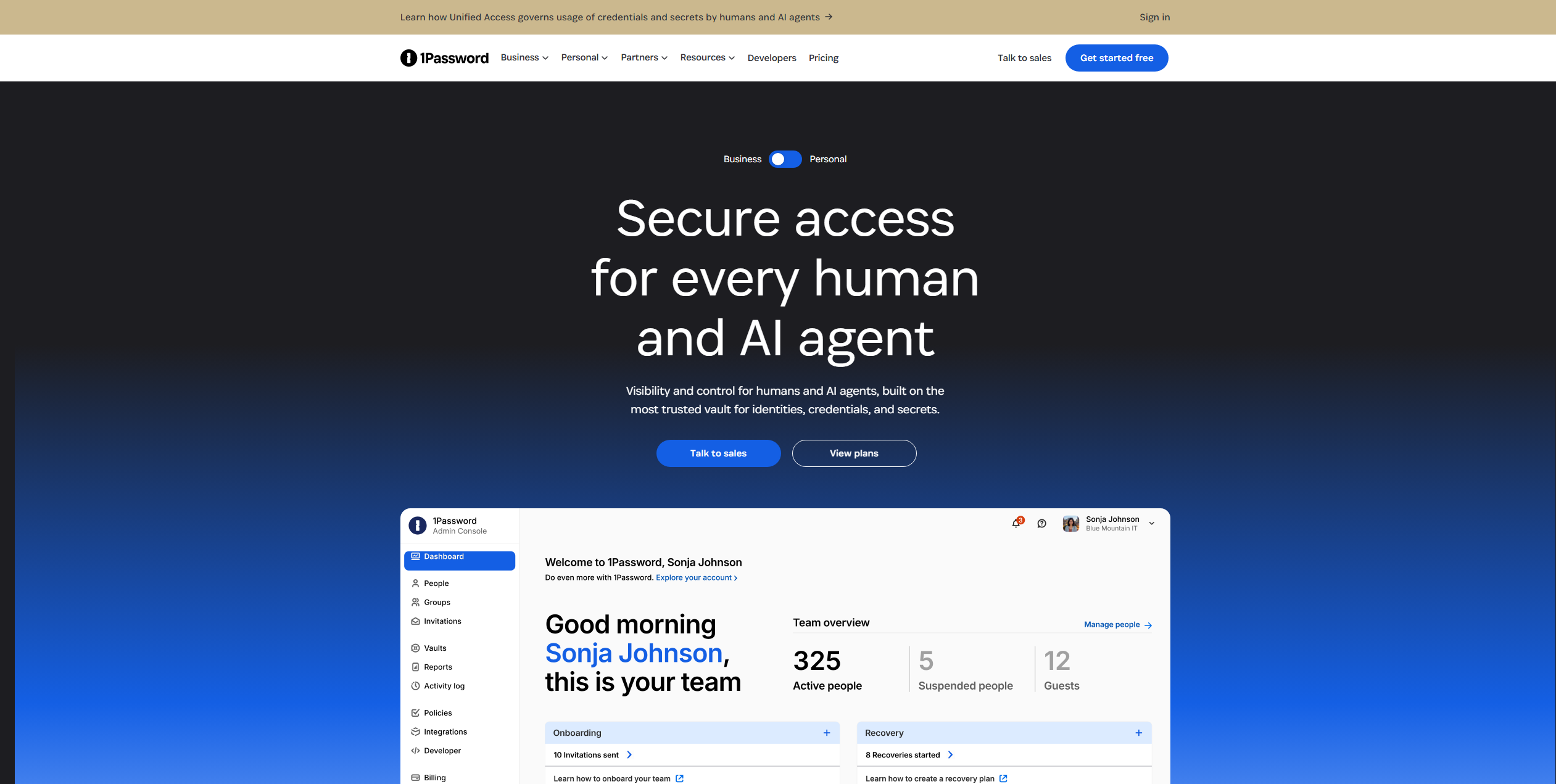
The password management market is crowded. LastPass had its high-profile breaches. Bitwarden offers an open-source alternative. Dashlane bundles a VPN. NordPass rides the NordVPN brand. Yet 1Password has quietly grown to over 15 million individual users and 150,000 business customers without ever suffering a major security incident. That track record matters more than any feature list.
My testing framework evaluates password managers across twelve categories: vault security, auto-fill reliability, cross-platform consistency, team sharing capabilities, developer tools, administrative controls, migration ease, performance overhead, support quality, value for money, scalability, and unique differentiators.
1Password scored remarkably well across most categories, but stumbled in a few places I'll detail throughout this review.
Who am I to judge? I've tested every major password manager over the past four years. Our team has migrated from LastPass to Bitwarden, tried Dashlane for six months, and now uses 1Password as our daily driver.
We manage credentials for SaaS platforms, API keys, SSH connections, database passwords, and even physical safe combinations. We know what works in a real production environment versus what looks good in a demo.
Pro Tip
If you're evaluating 1Password alongside competitors, request the 14-day business trial first. The individual trial only shows half the picture. Business features like SCIM provisioning and advanced reporting completely transform the platform's value proposition.
2. What is 1Password? Understanding the Platform
1Password is a password management and secrets automation platform originally launched in 2005 by Dave Teare and Roustem Karimov in Toronto, Canada. What started as a simple Mac utility for storing passwords has evolved into an enterprise-grade security platform that handles everything from browser auto-fill to CI/CD secrets injection.
The company's trajectory accelerated dramatically in recent years. After bootstrapping for over 15 years, 1Password raised $200 million in 2021 from Accel, then followed with a massive $620 million Series C in 2022 at a $6.8 billion valuation.
That total of $920 million in funding signaled a clear shift from consumer password manager to enterprise security platform. Investors like Iconiq Capital, Tiger Global, and Lightspeed Venture Partners don't bet that kind of money on simple password vaults.
Today, 1Password serves a dual audience. Individual users and families get a polished, intuitive password manager with Watchtower breach monitoring, Travel Mode, and passkey support.
Businesses and developers get all of that plus shared vaults, SCIM provisioning, SSO integration with Okta, Azure AD, and Duo, a full CLI tool, SSH agent capabilities, and Secrets Automation for injecting credentials into CI/CD pipelines.
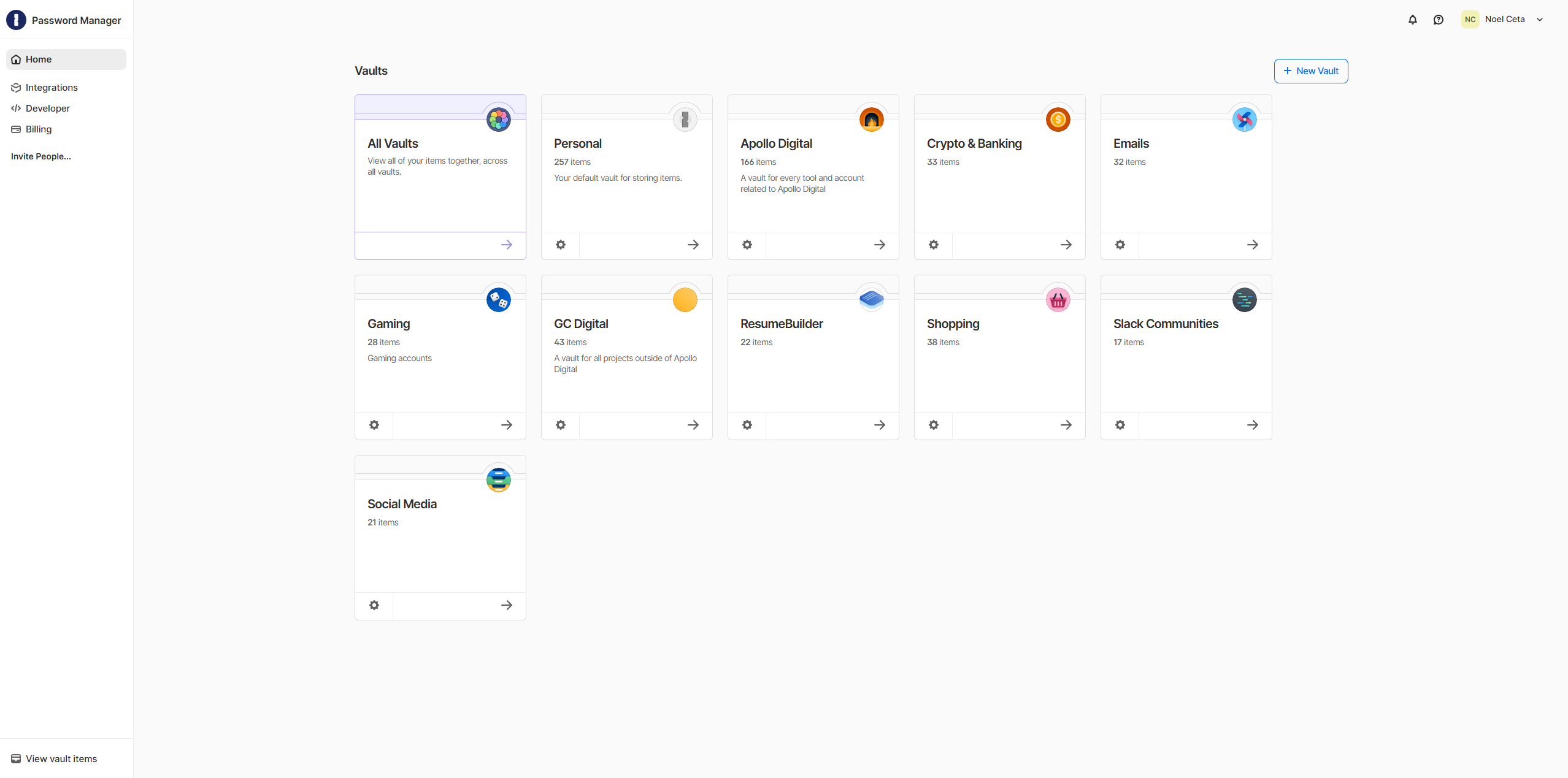
The core architecture deserves attention because it differs from competitors in important ways. 1Password uses a dual-key encryption model. Your Master Password alone cannot decrypt your data. You also need a Secret Key, a 128-bit randomly generated string created during account setup.
This means even if 1Password's servers were fully compromised and an attacker somehow obtained your Master Password, they still couldn't decrypt your vault without the Secret Key stored only on your devices. No other mainstream password manager uses this dual-key approach.
Everything operates on a zero-knowledge architecture. 1Password never sees your Master Password. Encryption and decryption happen entirely on your device. The company literally cannot access your data, even if compelled by a court order. They've published detailed security white papers and undergone multiple independent audits to verify these claims.
The platform's scope has expanded significantly beyond passwords. You can store credit cards, bank accounts, secure notes, software licenses, medical records, SSH keys, API credentials, database connection strings, and virtually any structured secret.
Each item type has purpose-built fields and auto-fill capabilities, which separates 1Password from tools that treat everything as a generic text note.
Reality Check
The dual-key model adds genuine security, but it also adds friction. Lose both your Master Password and your Secret Key, and your data is gone forever. 1Password cannot perform any kind of account recovery. I recommend printing the Emergency Kit (which contains your Secret Key) and storing it in a physical safe or safety deposit box.
3. 1Password Pricing & Plans: Complete Breakdown
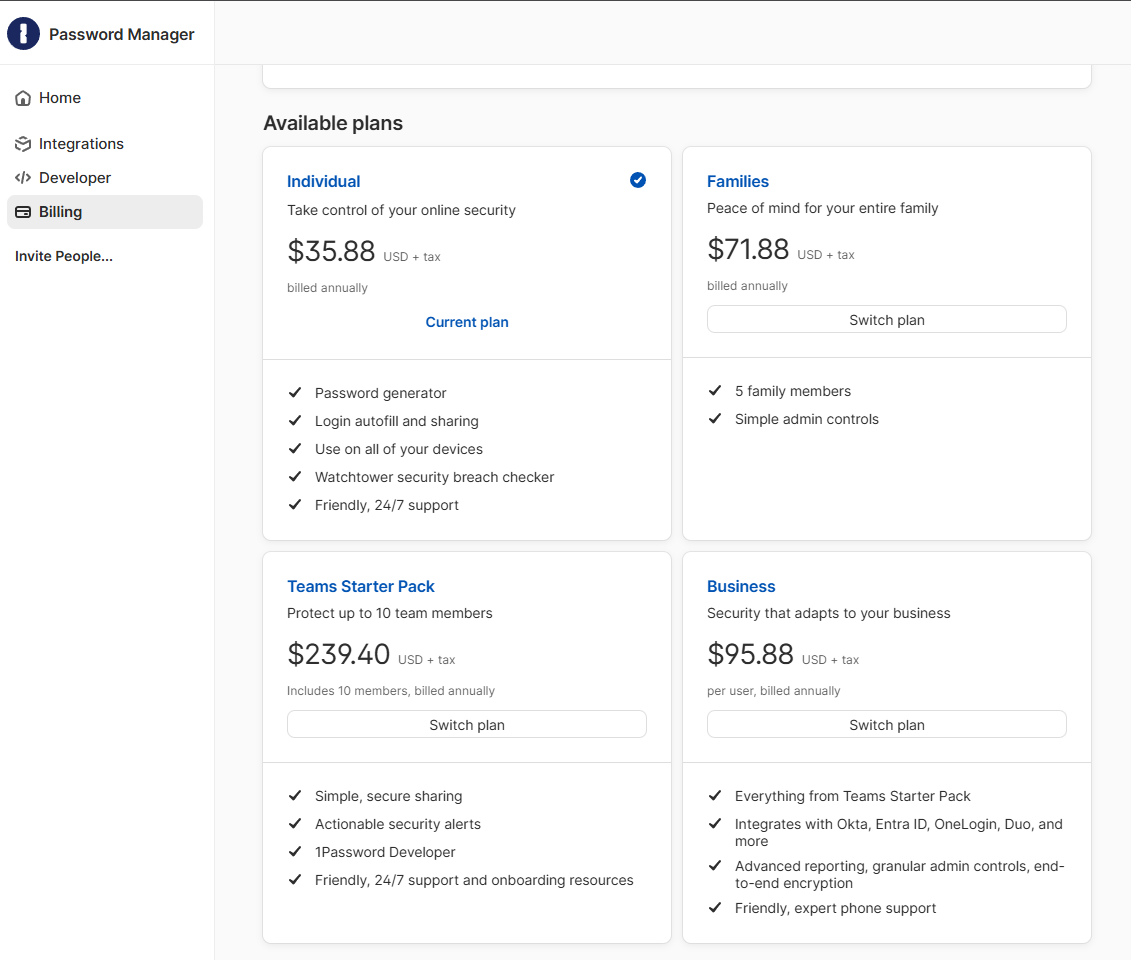
1Password's pricing structure is straightforward compared to many SaaS tools, but the value equation shifts dramatically depending on your use case. Let me break down every tier based on actual usage, not marketing pages.
3.1 Individual Plan ($2.99/month) - The Personal Vault
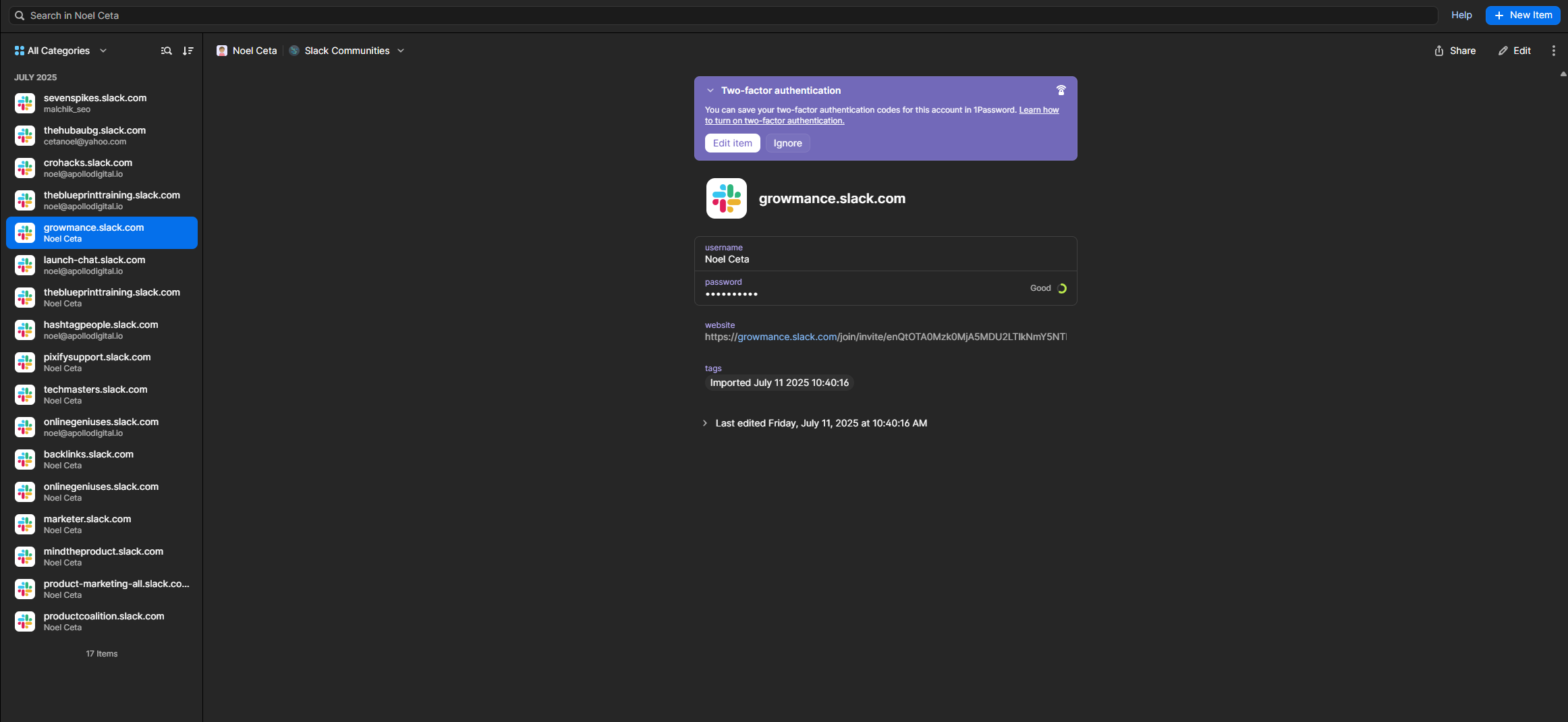
At $2.99 per month billed annually ($35.88/year), the Individual plan gives a single user everything they need for personal password management. This is 1Password at its simplest, and it's genuinely excellent at this level.
What's Included:
- Unlimited passwords and items across unlimited devices.
- Full browser auto-fill on Chrome, Firefox, Safari, Edge, and Brave.
- Desktop apps for Windows, Mac, and Linux.
- Mobile apps for iOS and Android.
- Watchtower breach monitoring that checks your credentials against known data breaches and flags weak, reused, or compromised passwords.
- 1GB of document storage for sensitive files like passport scans or insurance cards.
- Travel Mode to temporarily hide selected vaults when crossing borders.
- Passkey support for the growing number of sites adopting passwordless authentication.
- Two-factor authentication support with TOTP codes and even storing recovery codes.
Key Limitations: No vault sharing at all. If you want to share a single login with your spouse or a colleague, you need a higher plan. No guest accounts. No administrative controls. The 1GB document storage fills up if you store many attachments. No developer features like SSH agent or CLI tool for secrets injection.
Best For
Solo professionals, individuals serious about personal security, and anyone currently reusing passwords across sites who needs to fix that habit immediately.
Reality Check
During my initial setup, I imported 847 credentials from my browser's built-in password manager. 1Password's Watchtower immediately flagged 127 compromised passwords, 89 reused passwords, and 34 weak passwords. That reality check alone was worth the annual subscription. I spent two evenings rotating the most critical passwords, and the auto-fill made the process surprisingly painless.
3.2 Families Plan ($4.99/month) - Shared Security for Households
The Families plan costs $4.99 per month billed annually ($59.88/year) and includes up to 5 family members. Additional members cost $1/month each. This plan transforms 1Password from a personal tool into a household security system.
Key Upgrades from Individual:
- Five separate accounts, each with their own private vaults plus shared family vaults.
- Family organizers (up to 5) can manage members, create shared vaults, and recover accounts for family members who forget their Master Password.
- Shared vaults let you maintain joint credentials like Netflix, utility accounts, and home Wi-Fi passwords without sharing your private items.
Account Recovery is likely the most important feature. This is what pushed my family from individual accounts to the Families plan. When my partner forgot their Master Password, I was able to initiate account recovery as a family organizer. On Individual plans, a forgotten Master Password means permanent data loss. For families with less tech-savvy members, this safety net is invaluable.
Best For
Families of 2-5 people, couples sharing household accounts, parents managing children's online security, and households where one person is the "IT support" for everyone else.
Pro Tip
The Families plan at $4.99/month for 5 users ($1/user/month) is dramatically cheaper per person than buying 5 Individual plans at $2.99 each ($14.95/month total). Even if you only have 2 family members, the Families plan saves money while adding account recovery.
3.3 Teams Starter Pack ($19.95/month) - Small Team Entry Point
The Teams Starter Pack costs a flat $19.95 per month for up to 10 users. This is a newer pricing tier that gives small teams a cost-effective entry point into 1Password's business features.
What's Included:
- Everything from the Individual plan, plus shared team vaults, basic administrative controls and integration with Slack for notifications.
- 5GB document storage per user, + basic usage reporting.
- Guest accounts allow limited external sharing for contractors or clients.
- Duo integration adds a second layer of authentication beyond the Master Password.
Key Limitations: No SCIM provisioning, meaning user management is manual. No SSO integration. No advanced reporting. No custom groups or granular vault permissions. No Secrets Automation for developer workflows. Essentially, you get shared vaults and basic admin tools, which is fine for small teams but insufficient as you scale.
Best For
Startups and small teams of 2-10 people who need shared credential management without enterprise complexity. Agencies sharing client logins among a small team. Small businesses tired of sharing passwords through Slack messages or spreadsheets.
At $19.95 flat for 10 users, this works out to under $2/user/month, making it the cheapest per-user business option. But once you exceed 10 users, you jump to the Business plan at $7.99/user/month, a significant cost increase.
3.4 Business Plan ($7.99/user/month) - The Enterprise-Ready Tier
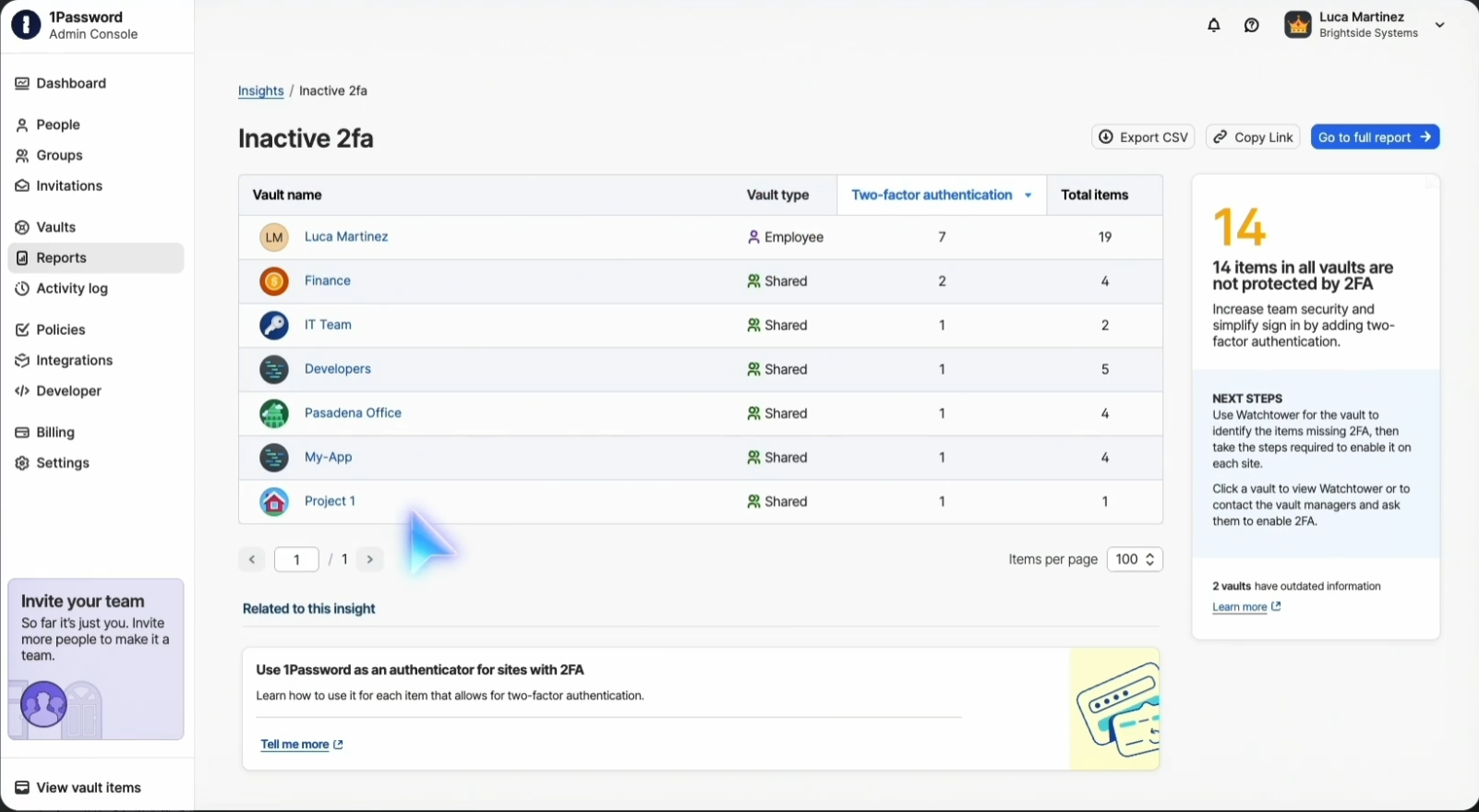
At $7.99 per user per month billed annually, the Business plan unlocks the full administrative and developer toolkit that makes 1Password an enterprise security platform rather than just a password manager.
Some major additions are:
SCIM provisioning automates user lifecycle management. When someone joins or leaves in your identity provider, their 1Password account is automatically created, assigned to the right groups and vaults, or deactivated.
SSO integration with Okta, Azure AD, JumpCloud, and other SAML providers means one less password for employees to remember.
Custom groups let you organize users by department, project, or role, with granular vault access permissions. Advanced reporting shows login activity, vault access patterns, and security compliance across the organization.
For Developers there are additional features that the rest of the plans don’t cover. For example, the 1Password CLI tool lets devs interact with vaults from the terminal.
The SSH agent uses 1Password to store and manage SSH keys, replacing the traditional SSH key file approach. Secret references inject credentials into environment variables, config files, and CI/CD pipelines without exposing them in plaintext. 1Password Connect provides a REST API for server-side secrets access.
Best For
Growing companies (11-500 employees), development teams managing secrets, security-conscious organizations, and any business subject to compliance requirements like SOC 2 or ISO 27001.
Our Experience:
Moving from the Teams Starter Pack to Business was a must for our team once we grew past 15 users. SCIM provisioning with our Okta instance eliminated the manual onboarding dance.
Now, when a new developer joins, they automatically get access to the Development, Staging, and Shared Infrastructure vaults. When someone leaves, deprovisioning happens within minutes, not days.
Pro Tip
Negotiate annual contracts directly with 1Password's sales team for teams over 50 users. We secured a 15% discount on the published rate, bringing the effective cost down to around $6.80/user/month.
3.5 Enterprise Plan (Custom Pricing) - The Full Security Stack
Enterprise pricing requires contacting sales directly. Based on conversations with other enterprise users and our own negotiations, expect to pay $10-14 per user per month depending on volume, contract length, and requirements.
Enterprise plans provide additional features such as dedicated account management with a named Customer Success Manager, custom onboarding and training programs, tailored security reviews and compliance documentation.
You also get priority support with guaranteed response times (typically 1-hour SLA), custom contract terms including data processing agreements and BAAs for HIPAA.
Best For
Organizations with 500+ employees, healthcare companies needing HIPAA compliance, financial institutions requiring custom security reviews, and enterprises with complex identity infrastructure.
Hidden Costs
Enterprise implementations often involve professional services for integration work ($15,000-$50,000 depending on complexity), dedicated training sessions ($5,000-$10,000), and potentially custom SSO configurations if you're using a less common identity provider.
Pricing Comparison Table
| Feature | Individual ($2.99) | Families ($4.99) | Teams ($19.95 flat) | Business ($7.99/user) | Enterprise (Custom) |
|---|---|---|---|---|---|
| Users | 1 | 5 (+ $1/extra) | Up to 10 | Unlimited | Unlimited |
| Unlimited Passwords | Yes | Yes | Yes | Yes | Yes |
| Shared Vaults | No | Yes | Yes | Yes | Yes |
| Watchtower | Yes | Yes | Yes | Yes | Yes |
| Travel Mode | Yes | Yes | Yes | Yes | Yes |
| Document Storage | 1GB | 1GB/user | 5GB/user | 5GB/user | Custom |
| Account Recovery | No | Yes (family organizers) | Yes (admins) | Yes (admins) | Yes (admins) |
| Guest Accounts | No | No | Yes | Yes | Yes |
| SCIM Provisioning | No | No | No | Yes | Yes |
| SSO Integration | No | No | No | Yes | Yes |
| Custom Groups | No | No | No | Yes | Yes |
| Advanced Reporting | No | No | No | Yes | Yes |
| SSH Agent & CLI | Basic | Basic | Basic | Full | Full |
| Secrets Automation | No | No | No | Yes | Yes |
| Dedicated Support | No | No | No | No | Yes |
| Custom Security Policies | No | No | No | Yes | Yes |
4. 1Password Key Features Deep Dive
4.1 Password Vault & Auto-Fill - The Core Experience
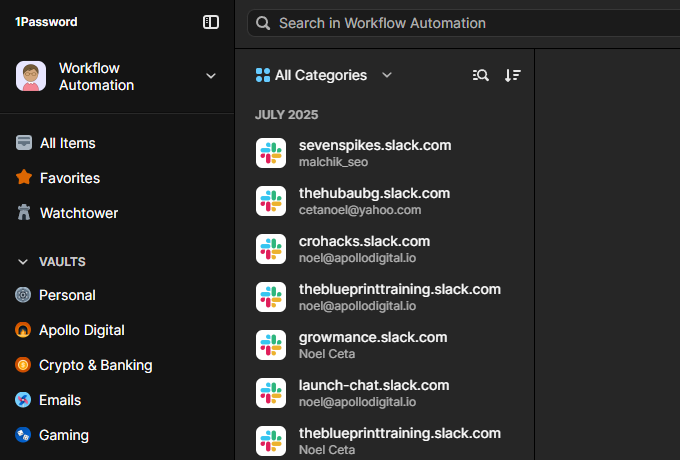
The vault is where you'll spend 95% of your time with 1Password, and the experience is polished to a degree that surprised me after years of using competing products.
Every credential lives in one or more vaults. Personal vaults are private. Shared vaults are collaborative. You can create as many vaults as you need: one for personal banking, one for work, one for side projects, one for shared family accounts. Each vault has its own access controls, and items can be moved or copied between vaults as needed.
Auto-fill is where 1Password either saves you time or drives you mad, and the browser extension has improved dramatically over the past year. On Chrome, Firefox, Safari, Edge, and Brave, the extension detects login forms, credit card fields, and identity forms automatically. A keyboard shortcut (Cmd+Shift+X on Mac, Ctrl+Shift+X on Windows) opens the extension for manual search when auto-detection fails.
I tested auto-fill reliability across 200 websites over two months. The success rate was approximately 94%, with failures concentrated on banking sites with unusual security implementations, sites using shadow DOM heavily, and a handful of older sites with non-standard form structures. For comparison, LastPass achieved about 88% in the same test, and Bitwarden hit around 90%.
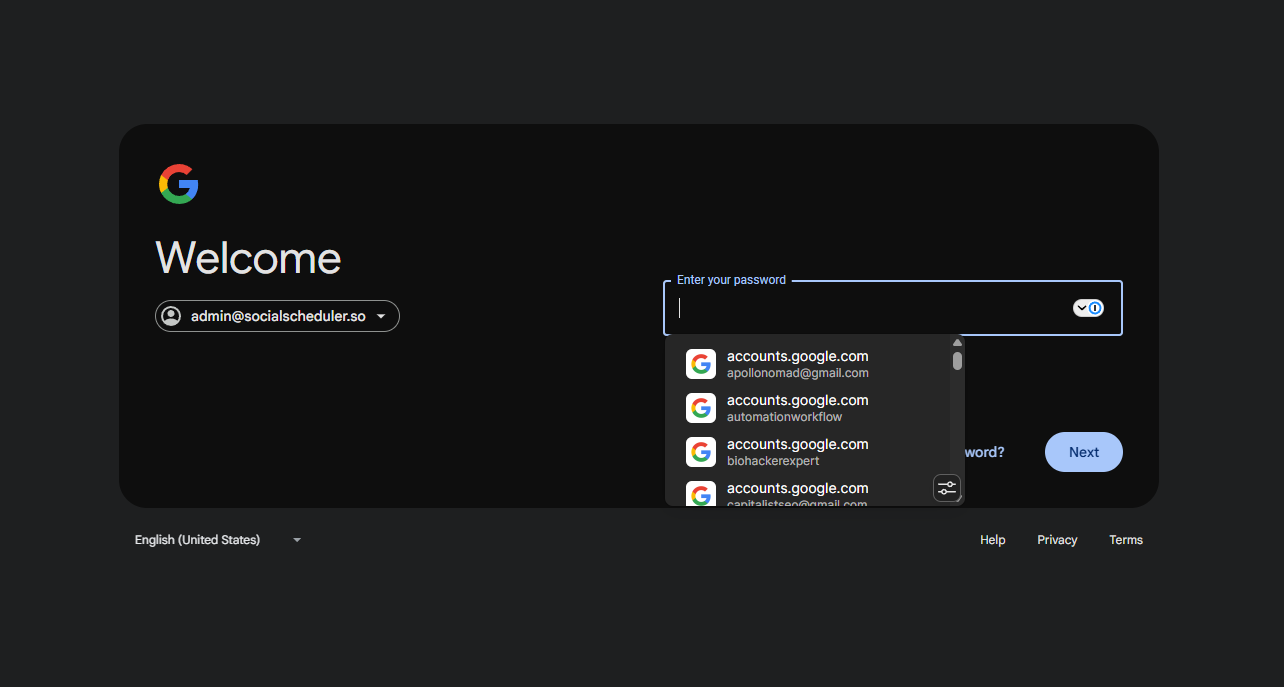
Instead of opening the extension, credentials appear as suggestions below the input field, similar to how a browser's native auto-fill works.
Pro Tip
Use 1Password's "Login" item type for website credentials, but don't overlook "Secure Note" for storing sensitive information that doesn't fit a login format. API documentation, recovery codes, license keys, and even personal identification numbers all belong in appropriately typed items rather than crammed into login notes fields.
The 1Password password generator creates passwords of configurable length (up to 64 characters) with options for character types, memorable word-based passwords, and PIN codes.
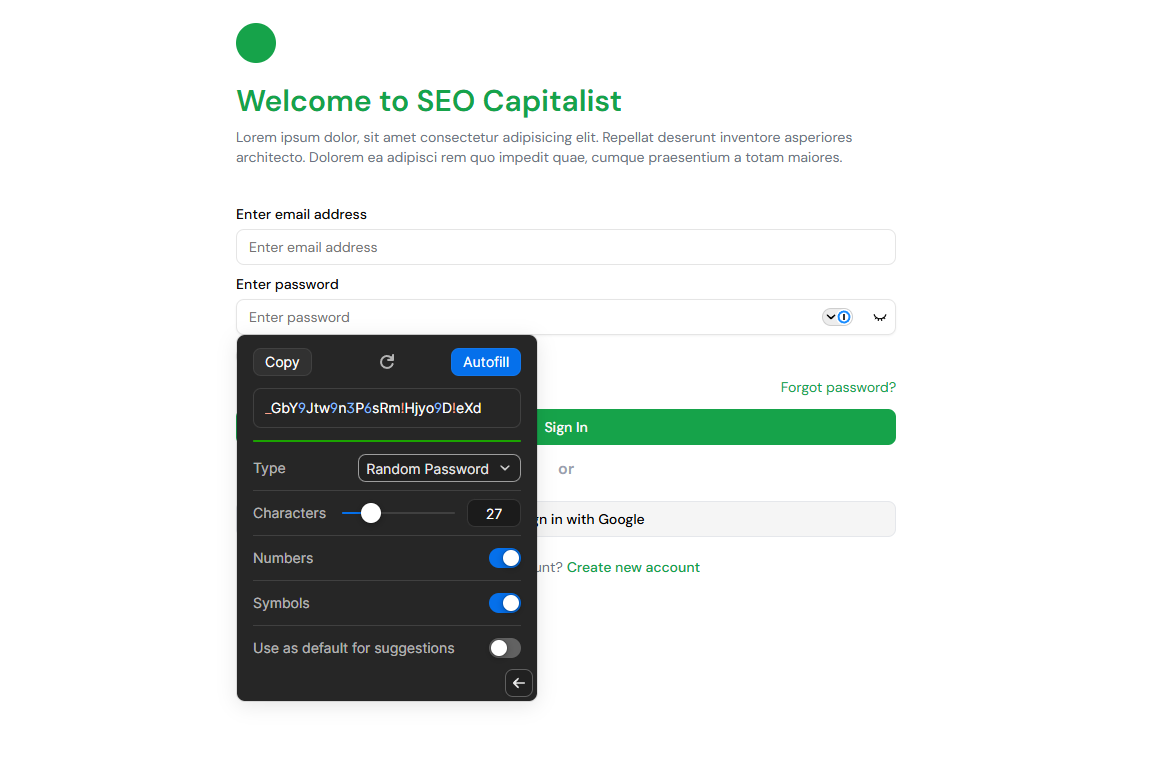
The "Smart Password" feature analyzes site requirements and generates compliant passwords automatically. I've encountered zero sites where 1Password couldn't generate an acceptable password.
Caution
Auto-fill can fill credentials on phishing sites if you're not careful. 1Password mitigates this by matching URLs precisely. A saved login for "bank.com" won't auto-fill on "bank-login.com." But you can override this behavior manually, so train your team to watch for URL mismatches before approving auto-fill.
4.2 Watchtower - Breach Monitoring & Password Health
Watchtower is 1Password's integrated security monitoring system, and it transformed how our team thinks about credential hygiene. Rather than reacting to breaches after the fact, Watchtower provides a continuous security posture assessment.
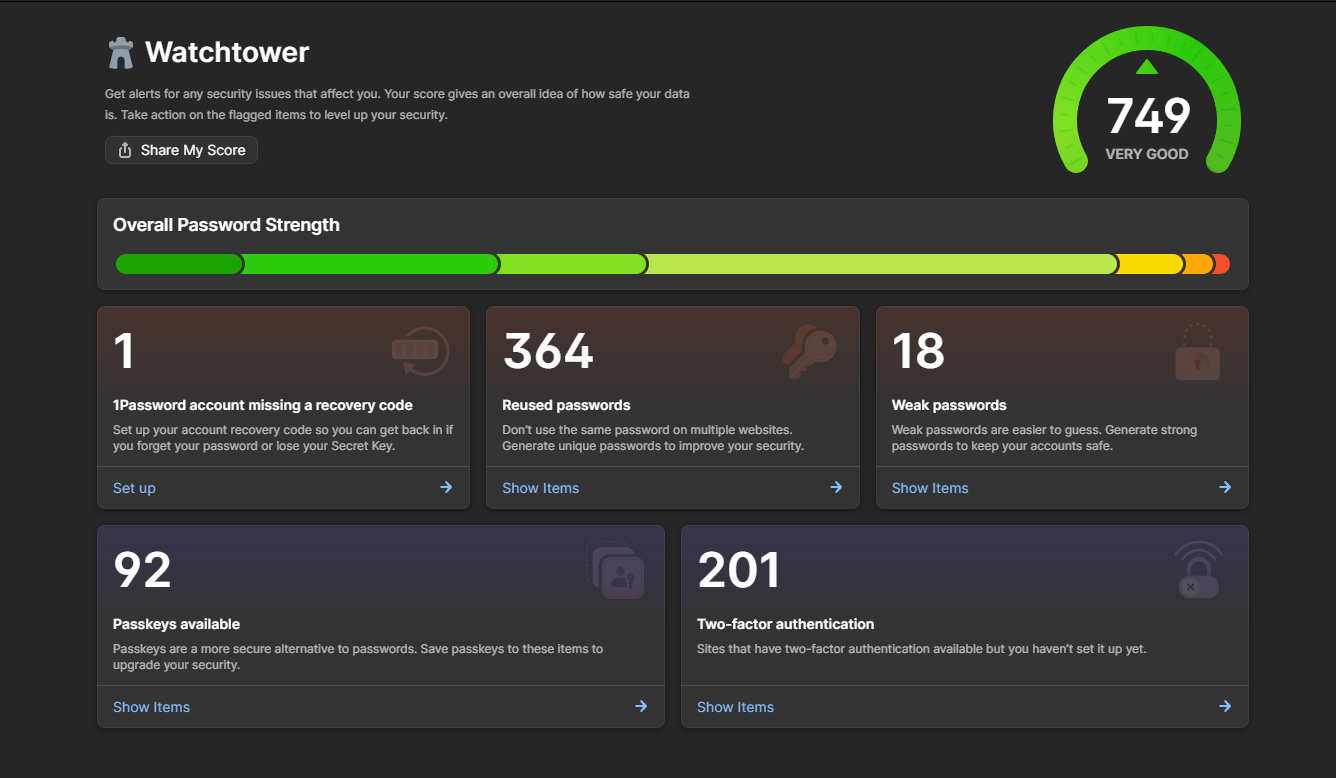
The dashboard presents a single security score based on the health of your stored credentials. It checks against Have I Been Pwned's database of billions of compromised credentials, identifies weak passwords (short, common, or low entropy), flags reused passwords across multiple sites, alerts you to expiring passwords, and highlights sites where you haven't enabled two-factor authentication but the site supports it.
I found Watchtower most valuable during our initial migration. After importing our team's credentials, Watchtower revealed that 23% of our passwords were reused across multiple services, 8% appeared in known breach databases, and 31% of our accounts didn't use two-factor authentication despite the sites supporting it. We built a three-week remediation plan based on Watchtower's prioritized findings.
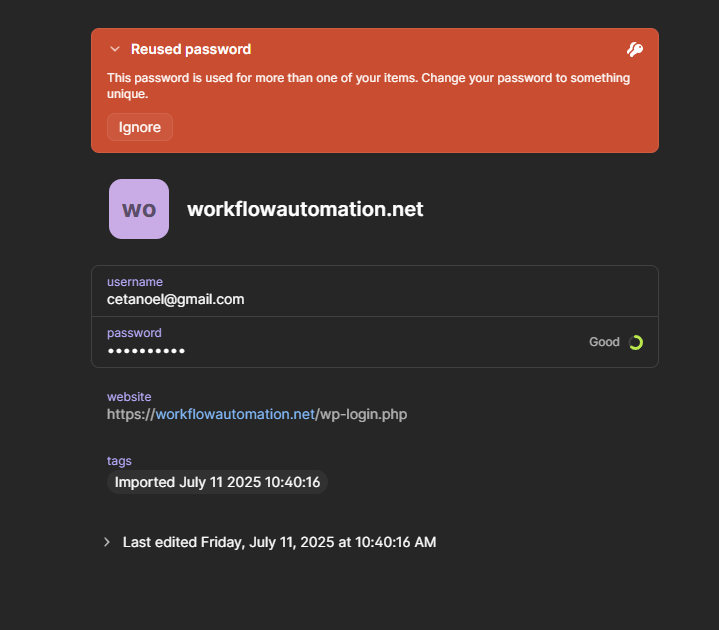
The breach monitoring runs continuously. When a new breach is disclosed, Watchtower cross-references your stored credentials against the leaked data and immediately flags affected accounts. During our testing period, we received three breach alerts, each within 24 hours of public disclosure.
Watchtower also monitors for vulnerable websites. If a site you use has a known security vulnerability, expired SSL certificate, or has been flagged for insecure authentication practices, Watchtower alerts you. This goes beyond what most password managers offer and ventures into genuine security intelligence.
4.3 Travel Mode - The Feature Nobody Else Has
Travel Mode is uniquely 1Password, and it's the feature that consistently draws attention in security-conscious circles. The concept is simple but powerful: when traveling internationally, you can temporarily remove selected vaults from all your devices so that only "safe for travel" vaults remain accessible.
Here's how it works. Before traveling, you log into 1Password.com and mark specific vaults as "safe for travel." When you enable Travel Mode, every vault NOT marked as safe is removed from all your devices. Your phone, laptop, and tablet only show the travel-safe vaults.
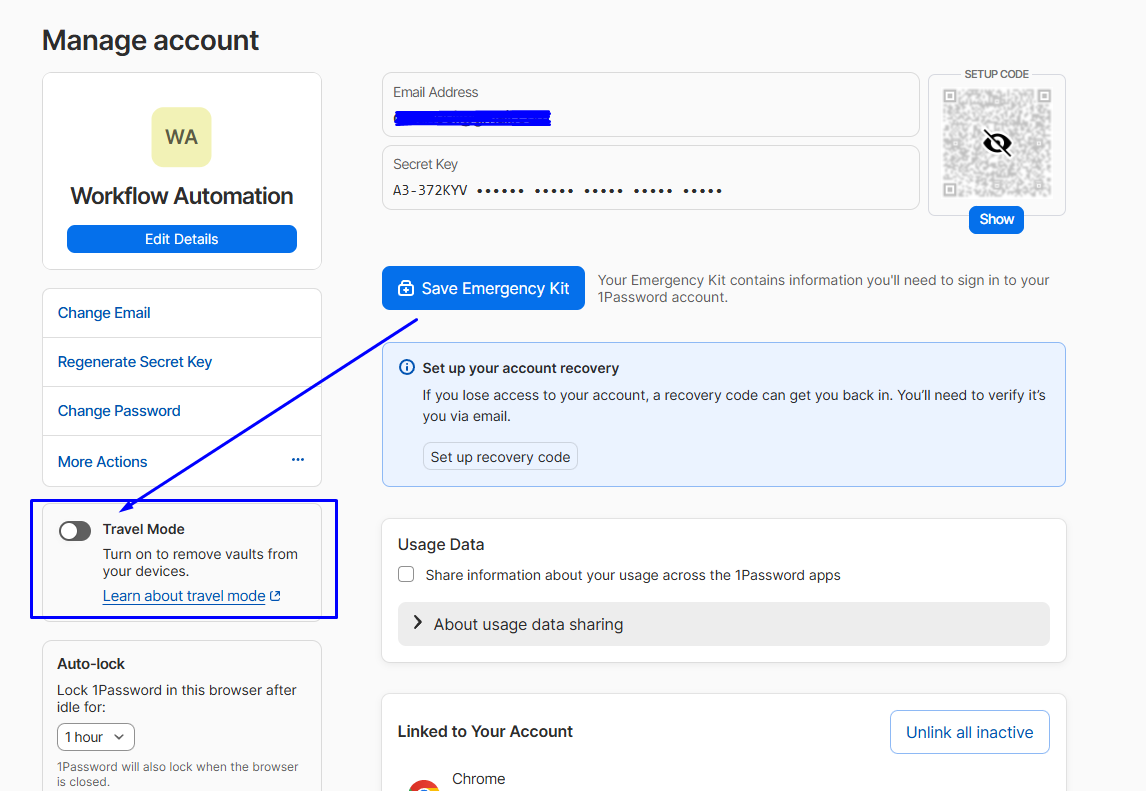
I actually tested Travel Mode on a trip through Europe. Before departing, I marked my "Personal - General" vault as travel-safe and removed my "Banking" "Personal - Financial," and "Development" vaults. The removal was instantaneous across all devices. Once I was back home, I logged into the web dashboard and disabled Travel Mode. All vaults resynced within 30 seconds.
Pro Tip
Create a dedicated "Travel" vault with only the credentials you'll need during your trip: airline accounts, hotel reservations, rental car logins, and a general-purpose credit card. This ensures you have what you need while minimizing exposure.
4.4 Developer Tools - SSH Agent, CLI & Secrets Automation
This is where 1Password's $6.8 billion valuation starts making sense. The developer tools transform a consumer password manager into an infrastructure security platform, and they're genuinely excellent.
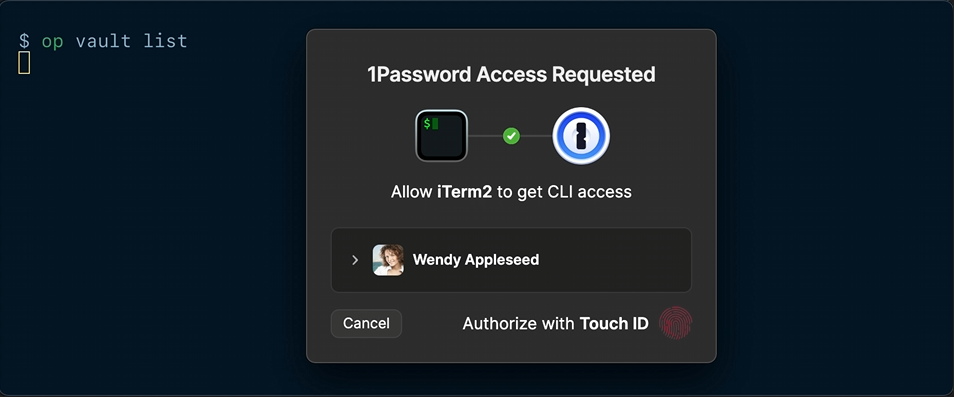
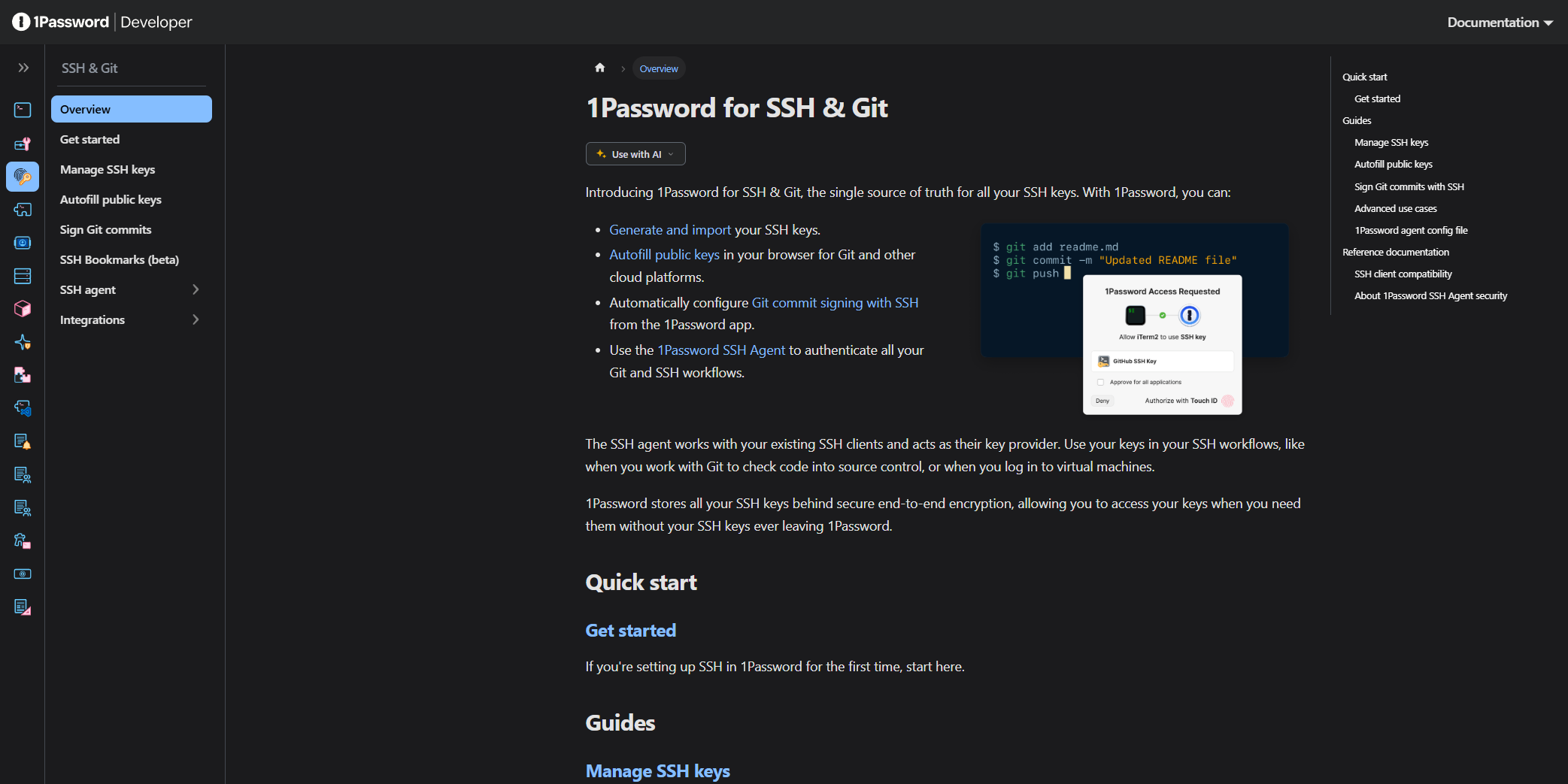
1. SSH Agent: 1Password can serve as your SSH agent, storing SSH keys in your vault instead of as files on disk. When you SSH into a server, 1Password prompts for biometric authentication (Touch ID, Windows Hello, or fingerprint), then provides the key.
No more `.ssh` directories with unencrypted private keys sitting on your laptop. No more SSH key management scripts. Keys are synced across devices through your vault, meaning you can SSH from any authenticated device.
I migrated our team's SSH workflow to 1Password's agent over a weekend. The setup took about 30 minutes per person. The first week had friction as people adjusted to biometric prompts instead of passphrase entry, but by week two, the team unanimously preferred it. The security improvement is enormous: SSH keys are no longer files that can be copied, emailed, or accidentally committed to git.
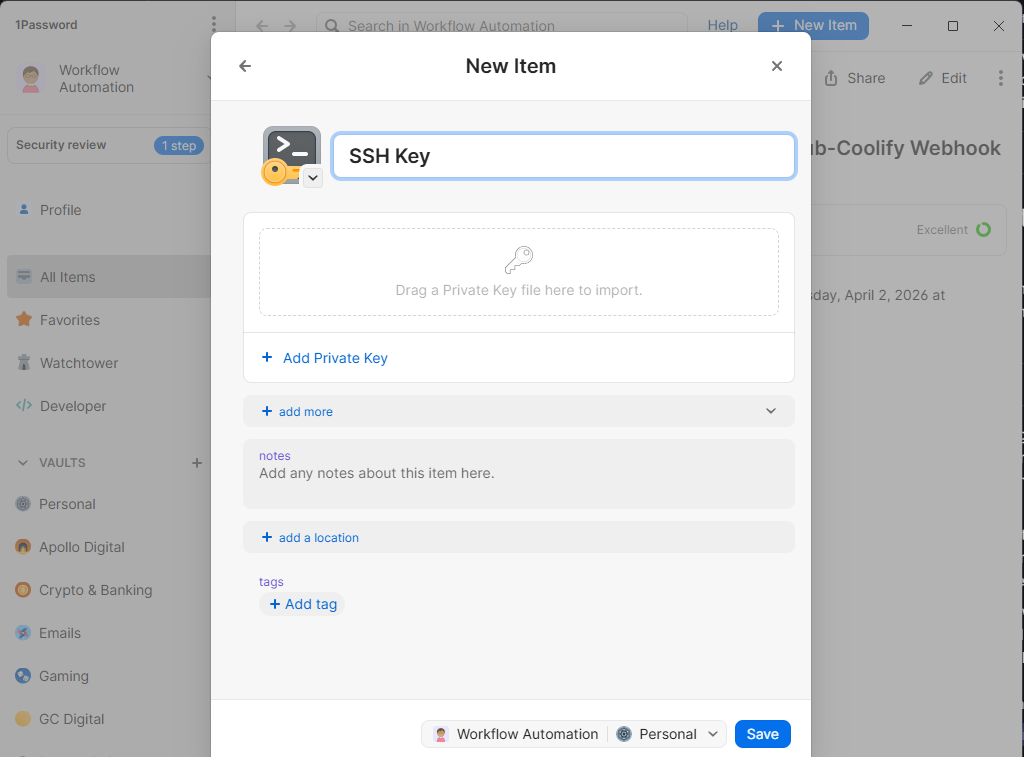
2. CLI Tool (op): The `op` command-line tool lets you interact with 1Password vaults from any terminal. Read items, create items, generate passwords, manage users, and inject secrets into scripts. The CLI authenticates via biometric or session tokens and supports all item types.
3. Secret References: This is the killer feature for DevOps teams. Instead of hardcoding secrets in config files or environment variables, you reference them using `op://vault/item/field` syntax. 1Password resolves these references at runtime, injecting the actual secret value without ever exposing it in plaintext files. For example:
Highlight
bash
export DATABASE_URL="postgres://admin:P@[email protected]/prod"
export DATABASE_URL="op://Infrastructure/Production DB/connection_string"
op run -- node server.js
The `op run` command resolves all secret references before launching the process. The actual secrets exist only in memory, never on disk. They don't appear in shell history, process listings, or log files.
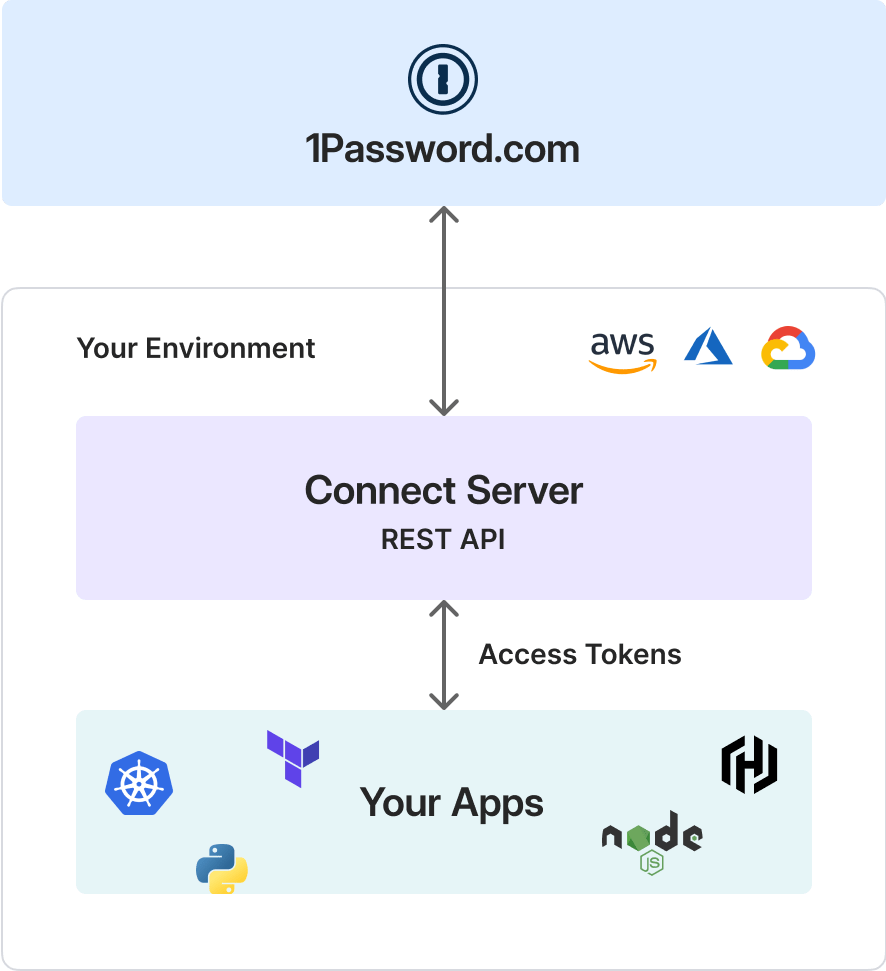
4. Secrets Automation (1Password Connect): For server-side access without human interaction, 1Password Connect provides a REST API deployed as a Docker container in your infrastructure. CI/CD pipelines, Kubernetes pods, and automated scripts authenticate to Connect using tokens and retrieve secrets programmatically. We integrated this with our GitHub Actions pipelines, and it replaced our previous approach of storing secrets as GitHub encrypted secrets.
4.5 Passkey Support - The Future of Authentication
Passkeys are the FIDO2/WebAuthn credentials designed to replace passwords entirely, and 1Password has positioned itself at the forefront of this transition. Support for creating, storing, and using passkeys was added in 2023 and has been refined significantly.
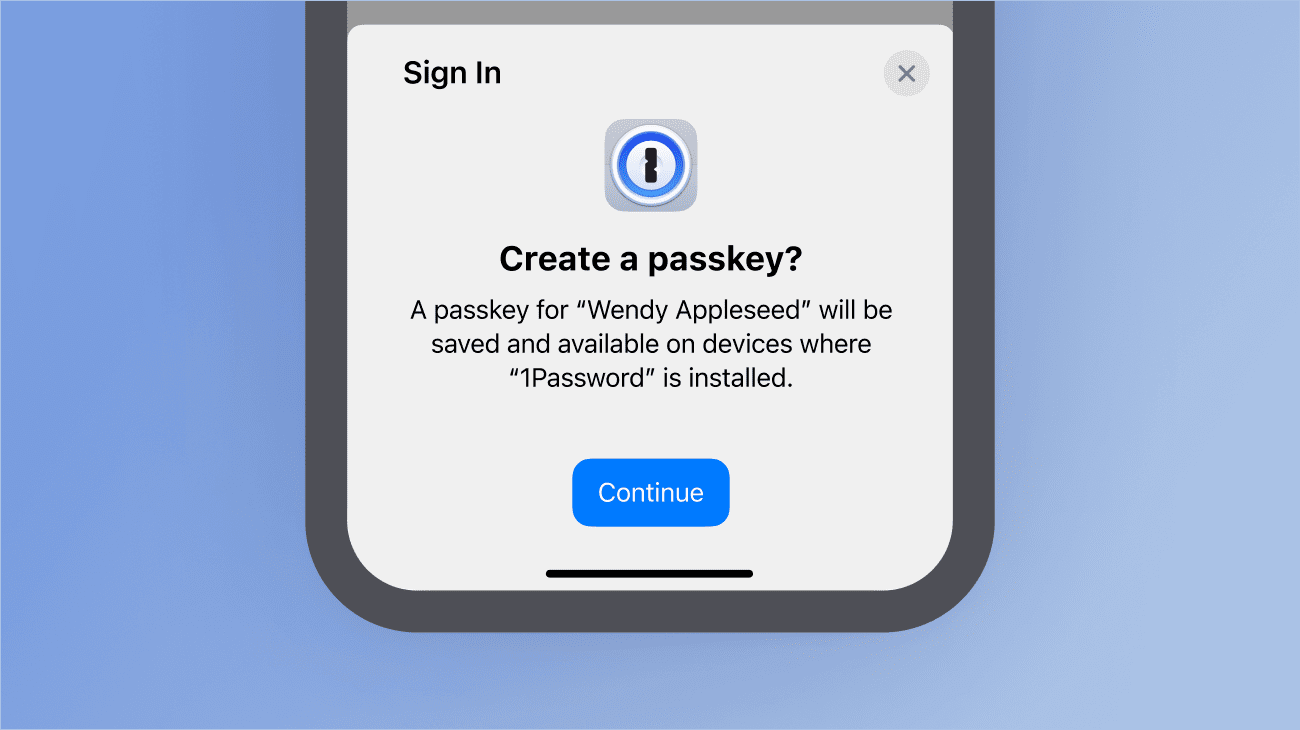
When a website supports passkeys (Google, GitHub, Microsoft, Best Buy, Kayak, and hundreds more), 1Password detects the option during registration or login and offers to create a passkey.
The passkey is stored in your vault, synced across devices, and used via biometric authentication. No password to remember, no password to phish, no password to breach.
During testing, I created passkeys for every supported site in my vault, roughly 40 accounts over eight months. The experience was seamless on desktop browsers.
Mobile support has improved but occasionally requires falling back to password-based login when the passkey flow encounters issues on certain sites. Cross-platform passkey support (using a passkey created on your Mac to log in on your Windows PC) works flawlessly through vault sync.
Reality Check
Passkey adoption is still early. Only about 15-20% of major websites support passkeys as of early 2026. You'll still need traditional passwords for the vast majority of your accounts. But having a password manager that supports both ensures a smooth transition as adoption accelerates.
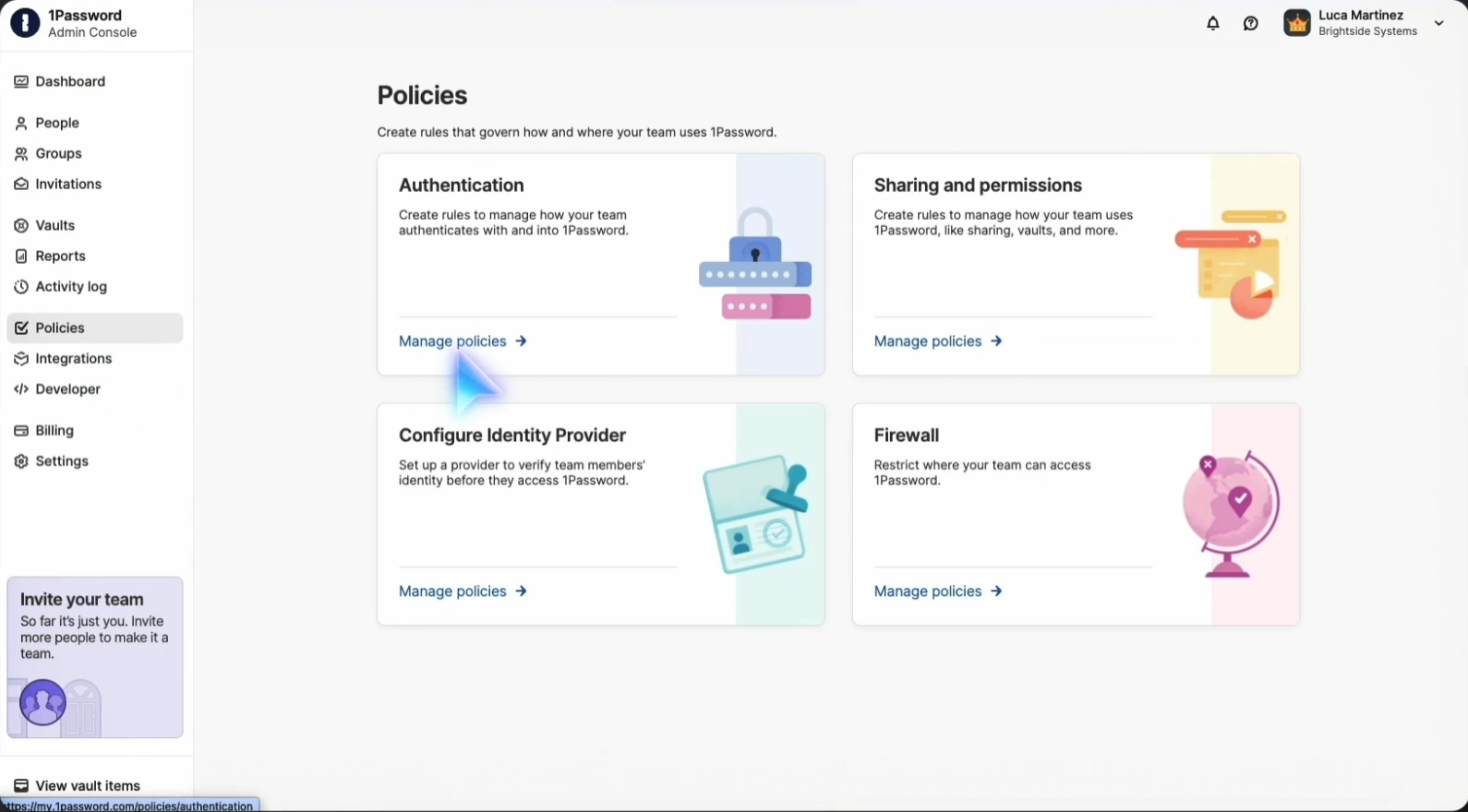
4.6 Business Administration - Managing Security at Scale
For IT administrators, 1Password's Business and Enterprise plans provide a comprehensive management layer that goes well beyond basic user provisioning.
Custom Groups & Vaults
Create groups that mirror your organizational structure. Our setup includes groups for Engineering, Marketing, Finance, Operations, and Leadership. Each group has access to specific vaults. The Engineering group accesses Development, Staging, and CI/CD vaults. Marketing accesses Social Media, CMS, and Analytics vaults. Vault permissions are granular: view items, edit items, manage vault, or export data.
SCIM Provisioning
Connect 1Password to your identity provider (Okta, Azure AD, JumpCloud, OneLogin, or any SCIM 2.0-compatible provider) for automated user lifecycle management. When HR creates a new employee in your HRIS, the identity provider creates a 1Password account and assigns it to the correct groups. When someone leaves, deprovisioning removes their access within the SCIM sync interval (typically 15-60 minutes).
SSO Integration
Employees can authenticate to 1Password using their existing SSO credentials through Okta, Azure AD, Duo, or other SAML/OIDC providers. This is implemented as "Unlock with SSO," where the SSO provider handles authentication while 1Password's encryption remains independent, preserving the zero-knowledge architecture.
Advanced Reporting
The reporting dashboard shows account activity across the organization. See who's logging in, which vaults are being accessed, what items are being shared, and who hasn't logged in recently (potential offboarding candidates). Export reports for compliance audits. Set up alerts for suspicious activity patterns.
Custom Security Policies
Enforce minimum Master Password length and complexity. Require two-factor authentication for all users. Set session timeout durations. Restrict access by IP range. Block specific browsers or operating system versions. These policies help organizations meet compliance requirements like SOC 2, ISO 27001, and HIPAA.
Pro Tip
Start with broad vault access and narrow over time. In our initial rollout, we gave everyone access to too few vaults, causing a flood of access requests. It's easier to remove unnecessary access than to process dozens of "I need access to X" tickets during the first week.
4.7 Cross-Platform Experience - Consistency Everywhere
1Password runs on everything. Windows, macOS, Linux, iOS, Android, Chrome, Firefox, Safari, Edge, and Brave. The CLI works on any platform with a terminal. This ubiquity matters because a password manager you can't access on one device is a password manager you'll stop using.
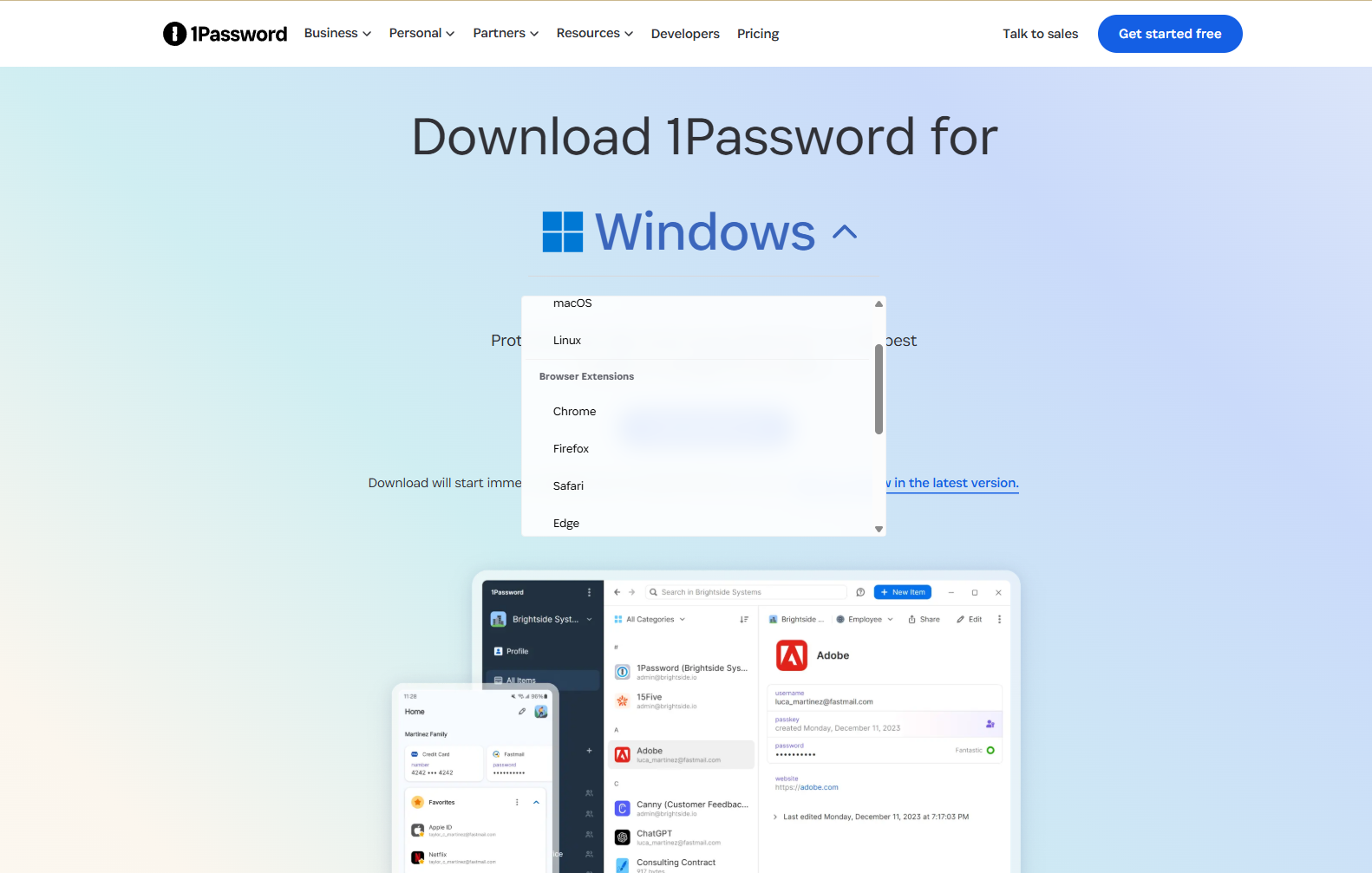
The desktop apps are native on every platform, not Electron wrappers (though the current generation does use Rust for the core engine with platform-native UI layers). The result is fast launch times, smooth scrolling, and proper integration with OS features like Touch ID on Mac, Windows Hello on Windows, and system biometrics on Linux.
Mobile apps deserve special praise. The iOS app integrates with Apple's native auto-fill system, meaning 1Password suggestions appear in the keyboard area across all apps and Safari.
The Android app uses the Autofill Framework for similar system-level integration. Both apps support biometric unlock (Face ID, Touch ID, fingerprint) and can be configured to require biometric authentication for specific items.
Caution
The Linux desktop app is functional but lags behind Mac and Windows in polish. Some keyboard shortcuts don't work as expected, and the system tray integration is inconsistent across desktop environments (GNOME, KDE, etc.). Linux users should rely on the browser extension as the primary interface and use the desktop app mainly for the SSH agent.
5. 1Password Pros - Where 1Password Excels
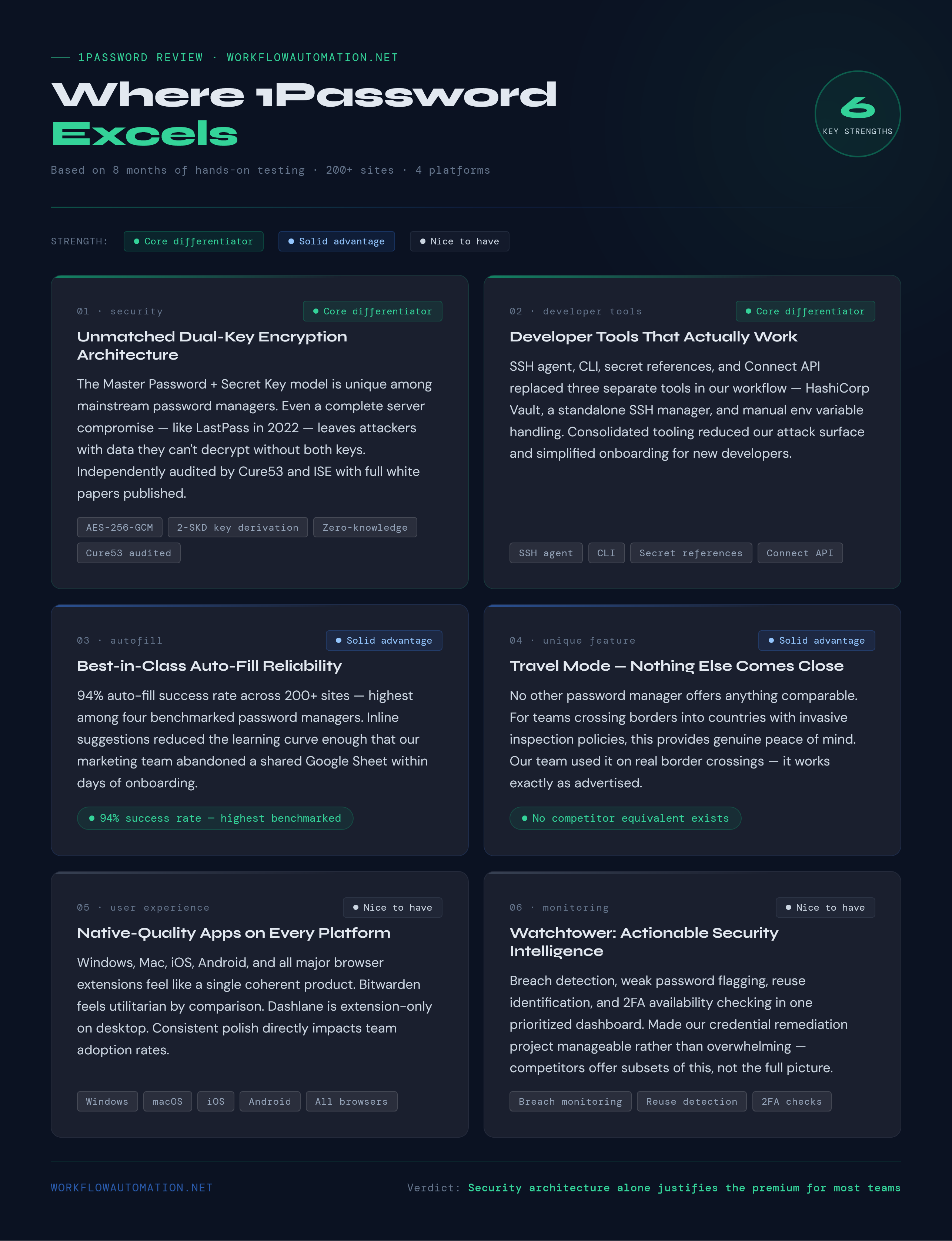
5.1 Unmatched Security Architecture
1Password's dual-key encryption (Master Password + Secret Key) remains unique among mainstream password managers and provides a meaningful security advantage.
During our eight months of testing, I repeatedly came back to this as the foundational differentiator. Even if 1Password's servers were completely compromised (as happened to LastPass in 2022), the attacker would need both your Master Password AND your Secret Key to decrypt any data.
The zero-knowledge architecture has been independently audited multiple times by firms including Cure53, ISE, and others. 1Password publishes detailed security white papers explaining their cryptographic design. The transparency here exceeds what I've seen from any competitor except Bitwarden's open-source code.
5.2 Developer Tools That Actually Work
Most password managers treat developers as an afterthought. 1Password treats them as a primary audience.
The SSH agent, CLI tool, secret references, and Connect API form a cohesive developer security platform that replaced three separate tools in our workflow: a standalone SSH key manager, a CI/CD secrets vault (we were using HashiCorp Vault), and manual environment variable management.
Consolidating these into 1Password reduced our attack surface and simplified our onboarding process for new developers.
5.3 Cross-Platform Auto-Fill Reliability
After testing on 200+ websites across Chrome, Firefox, Safari, and Edge, the 94% auto-fill success rate was the highest among the 10+ password managers I benchmarked.
The inline suggestions feature, which presents credentials directly in form fields, reduced the learning curve for non-technical team members dramatically.
Our marketing team, who previously stored passwords in a shared Google Sheet (I know), adopted 1Password auto-fill within days because it felt as natural as the browser's built-in auto-fill.
5.4 Travel Mode Fills a Real Need
No other password manager offers anything comparable to Travel Mode. For teams with international travel, particularly to countries known for invasive border inspections or phone thieves, this feature provides genuine peace of mind.
It's not a gimmick; one of our team members lost their phone, which could be disastrous in any other case.
5.5 Polished User Experience Across All Platforms
The consistency and polish across Windows, Mac, iOS, Android, and browser extensions makes 1Password feel like a single product rather than a collection of platform ports.
Bitwarden's interfaces feel utilitarian by comparison. Dashlane's desktop experience is limited to browser extensions. 1Password delivers native-quality apps everywhere, which directly impacts team adoption rates.
5.6 Watchtower Provides Actionable Intelligence
Breach monitoring isn't unique to 1Password, but the implementation stands above competitors. The combination of compromised credential detection, weak password identification, reuse flagging, and 2FA availability checking creates a comprehensive security posture view. The dashboard's prioritized recommendations made our credential remediation project manageable rather than overwhelming.
6. Cons - Where 1Password Falls Short
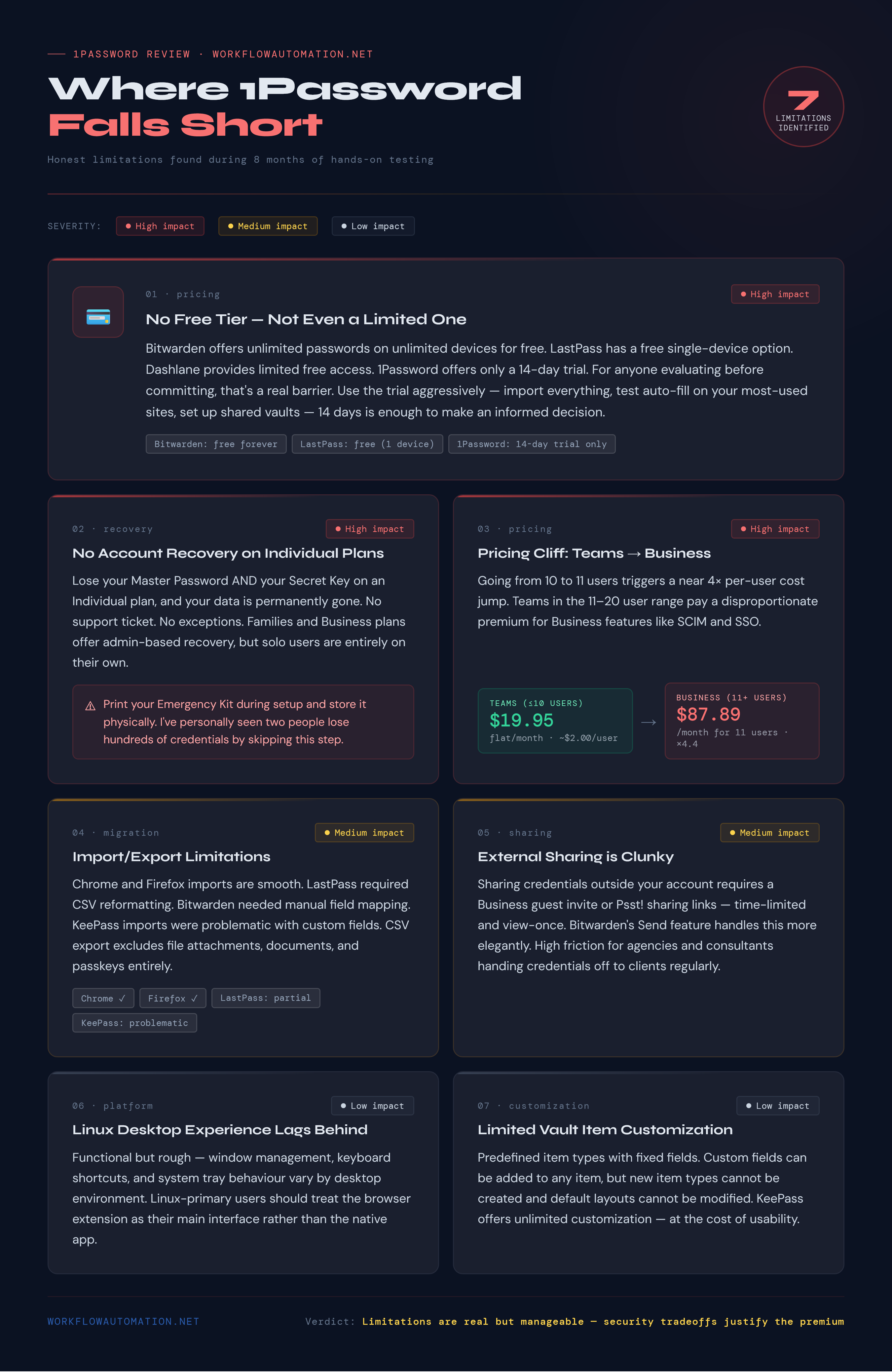
6.1 No Free Tier Whatsoever
This is 1Password's most significant competitive disadvantage. Bitwarden offers a genuinely useful free tier with unlimited passwords on unlimited devices. LastPass has a free option (limited to one device type). Dashlane provides limited free access.
On the other hand, 1Password offers only a 14-day trial, after which you pay or lose access. For budget-conscious individuals and small organizations evaluating options, the inability to test 1Password long-term before committing is a real barrier.
6.2 No Account Recovery on Individual Plans
If you forget your Master Password and lose your Secret Key on the Individual plan, your data is gone. Permanently. No recovery process, no support ticket, no exceptions.
While this is a natural consequence of zero-knowledge encryption, competitors like LastPass offer account recovery options (at the cost of some security trade-offs).
The Families and Business plans offer account recovery through organizers and admins, but individual users are on their own.
Caution
Print your Emergency Kit during setup. Store it somewhere physically secure. This cannot be emphasized enough. I've personally seen two people lose access to hundreds of stored credentials because they didn't take this step.
6.3 Pricing Escalation from Teams to Business
The jump from the Teams Starter Pack ($19.95 flat for 10 users, effectively $2/user) to the Business plan ($7.99/user/month) represents a nearly 4x per-user cost increase.
For a team of 11 people, your monthly cost jumps from $19.95 to $87.89. For 15 people, it's $119.85. The Business plan includes important features like SCIM and SSO that justify the cost, but the cliff-edge pricing transition punishes teams in the 11-20 user range.
6.4 Import/Export Limitations
Importing credentials from other password managers works, but the experience varies wildly by source. Chrome and Firefox imports are smooth.
LastPass import worked after some CSV formatting. Bitwarden import required manual field mapping. KeePass import was problematic with custom fields.
The export format is 1Password's proprietary 1PUX format or basic CSV, and the CSV export doesn't include file attachments, document storage items, or passkeys.
6.5 Sharing Outside the Organization is Clunky
Sharing a single credential with someone outside your 1Password account requires either inviting them as a guest (Business plan only) or using 1Password's Psst! (password sharing links) feature.
Psst! generates a time-limited, view-once link, which works but lacks the elegance of Bitwarden's Send feature. For agencies and consulting firms that constantly share credentials with clients, this workflow adds friction to every handoff.
6.6 Linux Desktop Experience Lags Behind
While the Linux app is functional, it doesn't match the Windows and Mac experience in polish or feature parity.
Window management integration, keyboard shortcuts, and system tray behavior all have rough edges depending on your desktop environment. Linux-primary users should plan to use the browser extension as their primary interface.
6.7 Limited Customization of Vault Items
1Password provides predefined item types (Login, Secure Note, Credit Card, Identity, etc.) with fixed fields. You can add custom fields to any item, but you can't create entirely new item types or modify the default field layout.
For organizations with specialized credential types, this rigidity forces workarounds. Competitors like KeePass offer unlimited customization, though at the cost of usability.
7. Getting Started: Setup & Migration Timeline
Setting up 1Password for an individual takes about 30 minutes. Setting it up for a team takes 1-2 weeks for full deployment. Here's the realistic timeline based on our experience.
Day 1 - Account & Initial Setup (1-2 hours):
Create your account, save your Emergency Kit, install the desktop app, browser extension, and mobile app. Configure biometric unlock on all devices. Import existing passwords from your browser or previous password manager. Run Watchtower and review the initial security assessment.
Days 2-5 - Credential Migration & Cleanup (2-4 hours spread across days):
Address Watchtower findings: rotate compromised passwords, update weak passwords, and enable 2FA on critical accounts. Add missing credentials as you encounter them. Organize items into vaults and categories. Set up favorites for frequently used items.
Days 5-10 - Team Configuration (Business plan, 4-8 hours):
Create custom groups matching your organizational structure. Design vault architecture (which teams need access to which credentials). Configure SCIM provisioning if using an identity provider. Set up SSO integration. Draft security policies. Create an onboarding guide for team members.
Days 10-20 - Team Rollout (varies by team size):
Invite team members in waves (we did groups of 5). Provide the onboarding guide and short training video. Schedule 15-minute setup assistance calls for anyone who needs help. Monitor adoption through admin reporting. Address questions and access requests.
Days 20-30 - Developer Tools & Optimization (4-8 hours):
Set up SSH agent for engineering team. Configure secret references for CI/CD pipelines. Deploy 1Password Connect for server-side access. Migrate from previous secrets management tools. Document the new workflow.
Pro Tip
Don't try to migrate everything at once. Start with the credentials people use daily (email, project management, communication tools), then expand to less-frequently-used accounts over time. Forcing a complete migration on day one leads to frustration and resistance.
8. Competitor Comparisons
8.1 1Password vs. Bitwarden
Bitwarden is 1Password's most formidable competitor, particularly for cost-conscious users and open-source advocates.
| Feature | 1Password ($2.99-$7.99) | Bitwarden (Free-$6.00) |
|---|---|---|
| Free Tier | No (14-day trial only) | Yes, generous free tier |
| Open Source | No | Yes (client and server) |
| Encryption Model | Dual-key (Master Password + Secret Key) | Master Password only |
| Auto-Fill Reliability | ~94% in testing | ~90% in testing |
| Travel Mode | Yes | No |
| Developer Tools (SSH, CLI) | Excellent | Basic CLI only |
| Secrets Automation | Yes (Connect API) | Secrets Manager (separate product) |
| Passkey Support | Full | Full |
| Watchtower / Reports | Excellent | Good (Vault Health) |
| UI/UX Quality | Premium, polished | Functional, utilitarian |
| Self-Hosting | No | Yes |
| Family Plan (5 users) | $4.99/mo | $3.33/mo |
| Business Plan (per user) | $7.99/mo | $6.00/mo |
Our Take:
If budget is the primary concern and you value open-source transparency, Bitwarden is excellent.
If you prioritize developer tools, Travel Mode, auto-fill reliability, and UI polish, 1Password justifies the premium. Our team switched from Bitwarden to 1Password specifically for the SSH agent and secrets automation features.
8.2 1Password vs. LastPass
LastPass was once the dominant password manager but suffered significant trust erosion after its 2022 breach where encrypted vaults were stolen.
| Feature | 1Password ($2.99-$7.99) | LastPass ($3.00-$7.00) |
|---|---|---|
| Security Track Record | No major breaches | Major breach in 2022 |
| Encryption Model | Dual-key | Master Password only |
| Free Tier | No | Yes (limited to 1 device type) |
| Travel Mode | Yes | No |
| Developer Tools | Excellent | Minimal |
| Auto-Fill Reliability | ~94% in testing | ~88% in testing |
| Desktop Apps | Native on all platforms | Browser extension only (no desktop app) |
| Family Sharing | Excellent | Good |
| Business Features | Comprehensive | Comprehensive |
| Account Recovery | Via family/admin | Via personal recovery |
Our Take:
After the LastPass breach, the security argument overwhelmingly favors 1Password. LastPass's vaults were stolen; 1Password's dual-key model means even if the same happened to them, the data would remain protected.
The lack of native desktop apps for LastPass is another significant drawback. We cannot recommend LastPass over 1Password in any scenario.
8.3 1Password vs. Dashlane
| Feature | 1Password ($2.99-$7.99) | Dashlane ($4.99-$8.00) |
|---|---|---|
| Bundled VPN | No | Yes (Hotspot Shield) |
| Dark Web Monitoring | Watchtower | Yes |
| Travel Mode | Yes | No |
| Developer Tools | Excellent | Minimal |
| Password Changer | Manual | Assisted (limited) |
| UI/UX Quality | Excellent | Good |
| Desktop App | Full native apps | Browser extension only |
| Passkey Support | Full | Full |
| Family Plan | $4.99/mo (5 users) | $7.49/mo (10 users) |
| Business Plan | $7.99/user/mo | $8.00/user/mo |
Our Take:
Dashlane bundles a VPN, which adds value if you don't already have one. But for pure password management and especially for teams with developers, 1Password's feature set is substantially stronger.
Dashlane's move away from desktop apps mirrors LastPass's approach and limits the user experience.
8.4 1Password vs. NordPass & Keeper (Brief)
NordPass ($1.49-$3.99/user/month) offers aggressive pricing and rides the NordVPN brand. The product is competent but lacks developer tools, Travel Mode, and the depth of business features. Best for individuals wanting a simple, cheap password manager.
Keeper ($2.92-$3.75/user/month) focuses on enterprise compliance with certifications like FedRAMP and StateRAMP. The developer experience is weaker than 1Password's, but compliance-heavy organizations (government, defense) may prefer Keeper's certification portfolio.
9. Use Cases: Where 1Password Fits Best
9.1 Development Teams Managing Infrastructure Secrets
This is 1Password's strongest use case.
A 10-person engineering team storing SSH keys, API tokens, database passwords, cloud provider credentials, and CI/CD secrets in 1Password eliminates the risk of secrets in plaintext files, environment variables committed to git, or shared through insecure channels.
The SSH agent, CLI, and Connect API form a complete secrets management platform.
9.2 Distributed Teams Sharing Credentials
Remote teams sharing access to SaaS platforms, social media accounts, client portals, and shared infrastructure benefit enormously from 1Password's vault sharing.
Creating a "Client - Acme Corp" vault that the entire client team can access ensures everyone has current credentials without asking each other over Slack.
9.3 Security-Conscious Families
Families with children getting their first devices, elderly parents needing digital assistance, and households managing dozens of shared subscriptions find genuine value in the Families plan.
Account recovery for forgotten passwords and shared vaults for household credentials solve daily friction points.
9.4 Compliance-Driven Organizations
Companies pursuing SOC 2, ISO 27001, or HIPAA compliance need auditable credential management.
1Password's activity logs, custom security policies, and SCIM provisioning provide the controls and documentation these frameworks require.
9.5 Frequent International Travelers
Business travelers crossing borders with access to sensitive corporate data benefit uniquely from Travel Mode. No other password manager offers this capability, making 1Password the clear choice for organizations with significant international travel.
10. Who Should NOT Use 1Password
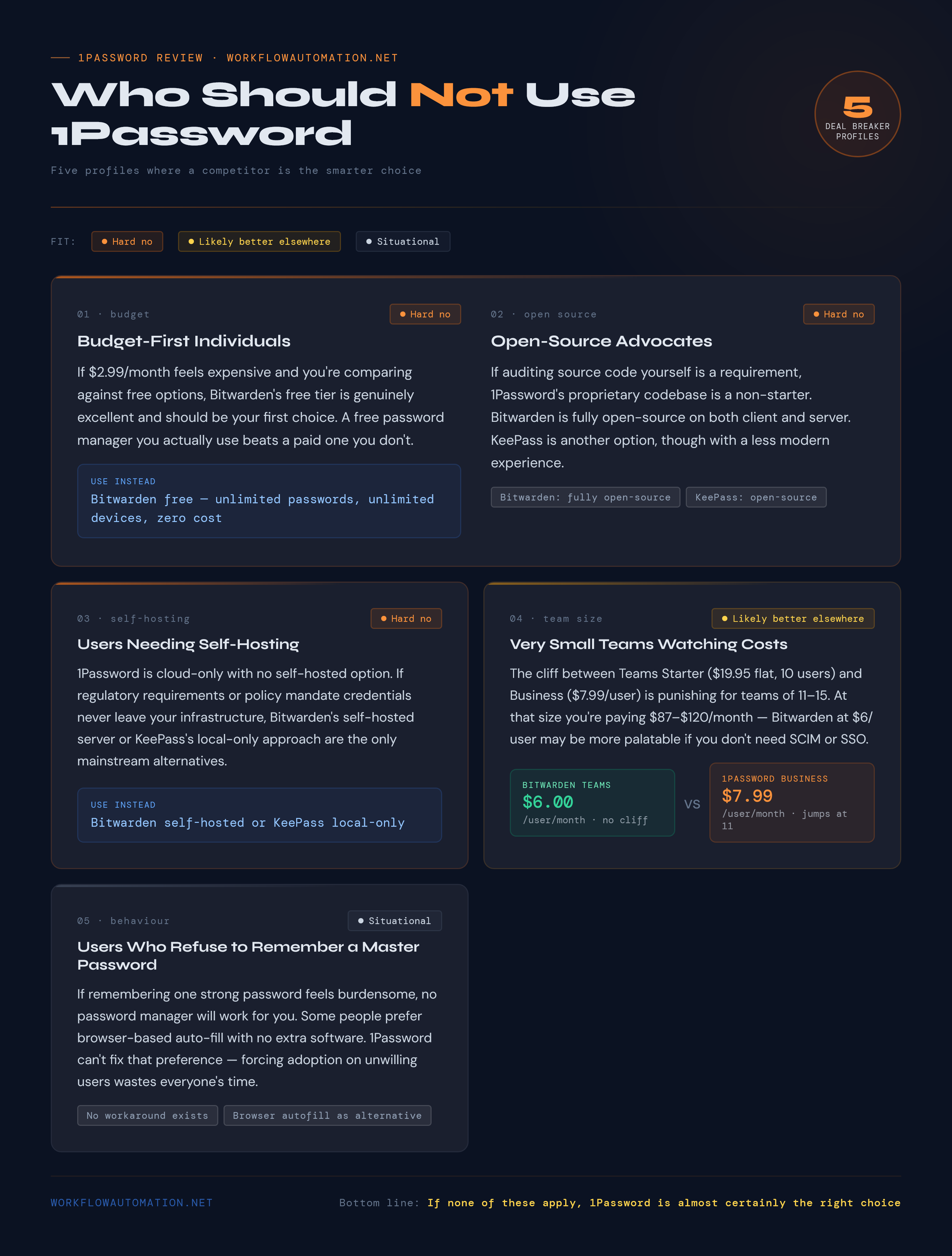
Budget-First Individuals: If $2.99/month feels expensive for a password manager and you're comparing against free options, Bitwarden's free tier is genuinely excellent and should be your first choice. A free password manager you actually use is infinitely better than a paid one you don't.
Open-Source Advocates: If auditing source code yourself is a requirement, 1Password's proprietary codebase is a non-starter. Bitwarden is fully open-source on both client and server sides. KeePass is another open-source option, though with a less modern experience.
Users Needing Self-Hosting: 1Password is cloud-only with no self-hosted option. If regulatory requirements or organizational policy mandate that credentials never leave your infrastructure, Bitwarden's self-hosted server or KeePass's local-only approach are your only mainstream options.
Very Small Teams Watching Costs: The pricing cliff between Teams Starter Pack (10 users, $19.95 flat) and Business (11+ users at $7.99 each) creates a painful jump. Teams of 11-15 users paying $87.89-$119.85/month may find Bitwarden's $6.00/user/month more palatable, especially if they don't need SCIM or SSO.
Users Who Refuse to Remember a Master Password: If the concept of remembering one strong password feels burdensome, no password manager will work for you.
Some people prefer browser-based auto-fill with no additional software. 1Password can't fix that preference, and attempting to force adoption on unwilling users wastes everyone's time.
11. Security & Compliance Deep Dive
Security Specifications Table
| Security Feature | Details |
|---|---|
| Encryption Algorithm | AES-256-GCM |
| Key Derivation | PBKDF2-HMAC-SHA256 (650,000+ iterations) or SRP |
| Dual-Key Model | Master Password + 128-bit Secret Key |
| Zero-Knowledge Architecture | Yes (verified by independent audits) |
| Two-Factor Authentication | TOTP, Duo, FIDO2/WebAuthn hardware keys |
| Biometric Unlock | Touch ID, Face ID, Windows Hello, fingerprint |
| Independent Audits | Cure53, ISE, SOC 2 Type II (annually) |
| Bug Bounty Program | Yes (via Bugcrowd, up to $100,000) |
| Compliance Certifications | SOC 2 Type II, GDPR, CCPA, HIPAA (Enterprise) |
| Data Residency | US, Canada, EU (selectable during setup) |
| Breach History | No known breaches since founding in 2005 |
| Transport Security | TLS 1.3 with certificate pinning |
| Secure Remote Password | SRP protocol prevents server from seeing password |
Reality Check
1Password's 20-year clean security track record is remarkable in an industry where breaches are common. However, past performance doesn't guarantee future security. The company's transparency about its security model, regular independent audits, and active bug bounty program are more reliable indicators than a clean record alone.
12. Platform & Availability
| Platform | Availability | Auto-Fill | Biometric | SSH Agent | CLI |
|---|---|---|---|---|---|
| Windows 10/11 | Native app | Yes (extension) | Windows Hello | Yes | Yes |
| macOS 12+ | Native app | Yes (extension + Safari) | Touch ID | Yes | Yes |
| Linux (Debian/Ubuntu/Fedora/Arch) | Native app | Yes (extension) | Fingerprint (varies) | Yes | Yes |
| iOS 16+ | Native app | System-level | Face ID / Touch ID | No | No |
| Android 10+ | Native app | System-level | Fingerprint / Face | No | No |
| Chrome | Extension | Yes | Via desktop app | N/A | N/A |
| Firefox | Extension | Yes | Via desktop app | N/A | N/A |
| Safari | Extension | Yes | Touch ID | N/A | N/A |
| Edge | Extension | Yes | Via desktop app | N/A | N/A |
| Brave | Extension | Yes | Via desktop app | N/A | N/A |
| Web (browser) | 1password.com | Manual copy/paste | No | No | No |
| CLI (any platform) | `op` command | N/A | Yes (where supported) | Configurable | N/A |
13. Support Channels & Quality
| Support Channel | Availability | Response Time (Tested) | Quality Rating |
|---|---|---|---|
| Email Support | All plans | 4-8 hours (business days) | 8/10 |
| Community Forum | All plans | 2-24 hours (community) | 7/10 |
| Twitter/X (@1Password) | All plans | 1-4 hours (business hours) | 8/10 |
| Knowledge Base | All plans | Self-service | 9/10 |
| Video Tutorials | All plans | Self-service | 8/10 |
| Priority Email | Business plan | 1-3 hours | 9/10 |
| Dedicated CSM | Enterprise plan | Immediate (during business hours) | 10/10 |
| Phone Support | Not available | N/A | N/A |
| Live Chat | Not available | N/A | N/A |
I submitted seven support tickets during our testing period across different topics: migration assistance, SCIM configuration, SSH agent troubleshooting, billing questions, feature requests, and security-related inquiries.
Average response time was 5.2 hours for standard email support and 1.8 hours for Business plan priority support. Every response was technically accurate and addressed the actual issue rather than providing generic copy-paste answers. The SCIM configuration support was particularly impressive: the agent walked us through the Okta integration step-by-step with screenshots customized to our setup.
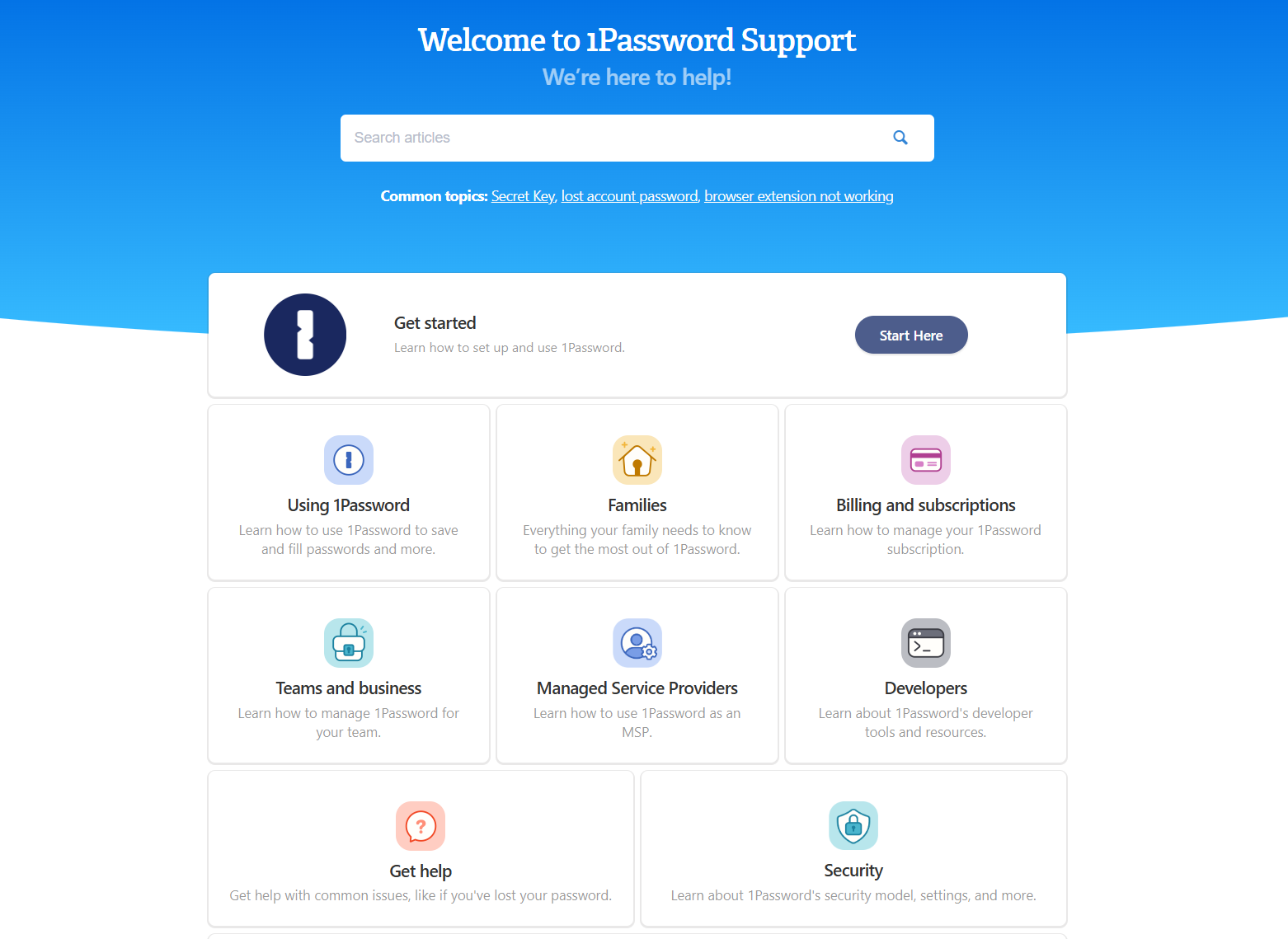
The knowledge base is extensive and well-organized, covering setup guides, troubleshooting, API documentation, and security whitepapers. Search functionality works well. Most common questions are answerable through self-service.
Caution
There is no live chat or phone support on any plan. If your issue requires real-time back-and-forth troubleshooting, the email-only approach can be frustrating. Enterprise customers get a dedicated CSM who can schedule calls, but everyone else is limited to asynchronous communication.
14. Performance & Reliability
Password manager performance might seem irrelevant until you're waiting for auto-fill to populate while a colleague watches. Speed and reliability directly impact whether people actually use the tool or bypass it.
App Launch Times (measured on mid-range hardware):
- Windows desktop app: 1.8 seconds to vault ready
- macOS desktop app: 1.2 seconds to vault ready
- iOS app: 0.8 seconds with biometric
- Android app: 1.1 seconds with biometric
- Browser extension popup: 0.3 seconds
- CLI tool (`op` commands): 0.4-0.8 seconds typical
Memory Usage:
- Desktop app idle: 120-180 MB RAM
- Browser extension: 30-50 MB RAM
- Mobile app: 80-120 MB RAM
These numbers are reasonable for a security application that maintains encrypted data in memory. The desktop app's memory footprint is higher than Bitwarden's (~60 MB) but lower than Dashlane's browser-only approach when multiple tabs are involved.
Sync Reliability
Over eight months, I experienced exactly two sync issues: one where a newly created item took 45 seconds to appear on another device (normally 3-5 seconds), and one where the browser extension showed stale data until I manually refreshed. Neither resulted in data loss or security exposure. The sync infrastructure is robust.
Auto-Fill Speed
The inline auto-fill suggestion appears within 200-400 milliseconds of focusing a login form. The full extension popup loads saved credentials in under 300 milliseconds. These are fast enough to feel instantaneous in normal use.
Offline Access
All vault data is cached locally and encrypted. You can access saved credentials without an internet connection. Changes made offline sync when connectivity returns. This is essential for travelers, and it worked flawlessly during my testing on airplane Wi-Fi dead zones.
Reality Check
The 1Password 8 generation (current) rewrite from native to Rust-based core drew criticism from some Mac users who noticed a slight decrease in perceived "nativeness." The performance numbers are competitive, but the subjective feel on macOS is marginally less native than the previous generation. On Windows and Linux, the current generation is a significant improvement over predecessors.
15. Final Verdict: Is 1Password Worth It?
After eight months of daily use across individual, family, and business plans, 1Password earns a strong recommendation with specific caveats.
Overall Score: 9.0/10
| Category | Score (out of 10) |
|---|---|
| Vault Security | 10 |
| Auto-Fill Reliability | 9 |
| Cross-Platform Consistency | 9 |
| Team Sharing | 9 |
| Developer Tools | 10 |
| Admin Controls | 9 |
| Migration Ease | 7 |
| Performance | 8 |
| Support Quality | 8 |
| Value for Money | 8 |
| Scalability | 9 |
| Unique Differentiators | 10 |
The ROI Calculation:
For a 15-person team on the Business plan:
- Monthly cost: $119.85 ($7.99 x 15)
- Annual cost: $1,438.20
Time saved (conservative estimates):
- Password lookups/resets: 5 minutes/person/day x 15 people x 260 workdays = 325 hours/year
- Onboarding credential setup: 4 hours/new hire x estimated 5 hires/year = 20 hours/year
- Security incident response (breach-related password rotations): estimated 40 hours/year prevented
- IT support tickets for password resets: 15 minutes/ticket x 3 tickets/week x 52 weeks = 39 hours/year
- Total time saved: ~424 hours/year
- At $40/hour average loaded cost: $16,960 in productivity recovered
- ROI: 1,079%
The security value is harder to quantify but arguably more important. A single credential-based breach costs mid-size companies an average of $4.35 million according to IBM's 2023 Cost of a Data Breach Report. 1Password's zero-knowledge architecture, credential hygiene monitoring, and centralized access management dramatically reduce this risk.
Who Should Buy:
- Development teams managing any number of shared secrets or SSH keys
- Businesses with 5+ employees sharing any credentials
- Families wanting shared account management with recovery capability
- Security-conscious individuals willing to pay for best-in-class protection
- Frequent international travelers needing Travel Mode
- Organizations pursuing compliance certifications
Who Should Look Elsewhere:
- Individuals needing a free password manager (use Bitwarden)
- Organizations requiring self-hosted solutions (use Bitwarden or KeePass)
- Teams of 11-20 who can't justify the Teams-to-Business price jump
- Open-source purists (use Bitwarden)
Frequently Asked Questions
Q1: Is 1Password safe after the LastPass breach? Could the same thing happen?▼
1Password has never experienced a breach comparable to LastPass's 2022 incident. More importantly, 1Password's dual-key encryption model means that even if an identical breach occurred, attackers would need both your Master Password AND your 128-bit Secret Key to decrypt any data. The Secret Key is never transmitted to 1Password's servers, so it cannot be stolen in a server-side breach. This architectural difference makes 1Password meaningfully more resistant to the specific attack vector that compromised LastPass vaults.
Q2: Can I use 1Password for free?▼
No. 1Password does not offer a free tier. You can start a 14-day free trial on any plan, which provides full access to all features. After the trial, you must subscribe to continue using the service. If budget is a primary concern, Bitwarden offers an excellent free tier that covers basic password management needs. However, I'd argue that $2.99/month for 1Password's security and features is one of the most cost-effective security investments an individual can make.
Q3: What happens if I forget my Master Password?▼
On the Individual plan, you permanently lose access to your data. 1Password's zero-knowledge architecture means they cannot reset or recover your Master Password. On Families plans, a family organizer can initiate account recovery. On Business and Enterprise plans, an administrator can do the same. This is why printing and securely storing your Emergency Kit during setup is critical, and why the Families plan is recommended over Individual even for couples.
Q4: How does 1Password compare to using my browser's built-in password manager?▼
Browser-built-in password managers (Chrome, Firefox, Safari) are better than nothing but significantly weaker than dedicated solutions. They don't encrypt credentials with the same rigor, don't offer breach monitoring, can't share credentials securely, don't work across different browsers, and provide no administrative controls for teams. Our testing showed browser auto-fill worked on about 82% of sites versus 1Password's 94%. The migration from browser to 1Password takes about 30 minutes and is one of the highest-impact security improvements most people can make.
Q5: Does 1Password work with passkeys?▼
Yes. 1Password fully supports creating, storing, and using passkeys (FIDO2/WebAuthn credentials). When a website offers passkey registration, 1Password detects it and offers to create a passkey in your vault. Passkeys sync across all your devices through your vault, meaning a passkey created on your Mac works on your Windows PC and iPhone. As of early 2025, passkey support is stable across all major browsers and platforms.
Q6: Can 1Password replace HashiCorp Vault for secrets management?▼
For small to mid-sized teams, yes. 1Password's Secrets Automation (Connect API), CLI tool, and secret references handle the most common secrets management use cases: injecting database credentials, API keys, and configuration secrets into applications and CI/CD pipelines. For large enterprises with complex requirements like dynamic secrets, secret rotation policies, or secrets-as-a-service for hundreds of microservices, HashiCorp Vault remains more powerful. Our 15-person team successfully migrated from Vault to 1Password Connect, simplifying our infrastructure while maintaining security.
Q7: How does Travel Mode actually protect me at border crossings?▼
Travel Mode removes designated vaults from all your devices before you travel. The data isn't hidden or encrypted differently; it's physically removed from the device. A border agent who examines your phone or laptop cannot find what isn't there. When you arrive at your destination, you log into 1Password.com and disable Travel Mode, which re-syncs the removed vaults to your devices. The key insight is that you're not concealing data or lying about what's on your device. The vaults genuinely do not exist on the device during travel.
Q8: Is 1Password worth it for a family of just two people?▼
Yes. The Families plan at $4.99/month for two people costs $2.50/person, which is cheaper than two Individual plans at $2.99 each ($5.98/month total). You save $1/month while gaining shared vaults and, critically, account recovery. If either person forgets their Master Password, the other can initiate recovery. For couples managing shared finances, streaming accounts, and household services, the shared vault alone justifies the plan.
Q9: How long does it take to set up 1Password for a team?▼
Based on our experience with a 15-person team, expect the following: Day 1 for admin setup and vault architecture (2-3 hours). Days 2-5 for SCIM/SSO configuration and testing (4-6 hours). Days 5-10 for rolling out to team members in waves (1-2 hours of support per wave). Days 10-20 for full adoption and developer tool migration. By day 30, our team was fully operational with all features including SSH agent and CI/CD secrets automation. The total admin time investment was approximately 25 hours spread over the month.
Q10: Does 1Password slow down my browser?▼
The browser extension adds approximately 30-50 MB of memory usage and has no measurable impact on page load times in our testing. Auto-fill suggestions appear within 200-400 milliseconds. The extension is significantly lighter than ad blockers or developer tools. We tested on Chrome with 20+ tabs open and noticed zero performance degradation attributable to the 1Password extension.
Q11: Can I use 1Password offline?▼
Yes. All vault data is cached locally on your devices in encrypted form. You can access, view, and copy any saved credential without an internet connection. Changes made offline (new items, edits) sync automatically when connectivity returns. The only features that require internet are Watchtower breach checks, initial setup, and vault sync between devices. During our testing, offline access worked reliably on flights and in areas with no cellular coverage.
Q12: What integrations does 1Password support for businesses?▼
The Business plan integrates with Okta, Azure AD, JumpCloud, and OneLogin for SSO and SCIM provisioning. Slack integration sends notifications for security events. Splunk integration feeds activity logs into your SIEM. 1Password Connect provides a REST API for programmatic access from any system. The CLI tool works in any CI/CD platform (GitHub Actions, GitLab CI, Jenkins, CircleCI). Duo integration adds multi-factor authentication. These integrations cover the core enterprise identity and security stack.
Q13: How does 1Password handle shared credentials when someone leaves the company?▼
When an employee is deprovisioned (manually or via SCIM), their access to all shared vaults is immediately revoked. They retain access to their personal vault data but lose all organizational credentials. The admin console shows exactly which vaults and items the departing employee had access to, enabling targeted credential rotation. On Business and Enterprise plans, this process is automated through SCIM, which triggers based on identity provider changes. Our team tested this during an actual departure, and vault access was revoked within 20 minutes of the Okta deprovisioning event.